USB Drive Read-Only Issue After Switching from Mac to Windows
Armanki
Posted messages
17
Status
Member
-
Armanki Posted messages 17 Status Member -
Armanki Posted messages 17 Status Member -
Hello,
So here it is, I have a problem that is becoming quite annoying:
This problem is recurring, it has happened to me with 2 USB keys
First, I killed a Toshiba 32GB USB3.0 key, formatted in ExFat after switching from Mac (10.10) to Windows 7.
The key was working perfectly well on Mac, and after a file transfer, it was plugged into a computer with Windows 7, the computer completely froze as soon as the key was inserted (even though it wasn't the first time I had used it like that), I had to restart the computer, we try again, it happens again. And since then, the key is damaged, read-only mode is the only option, and it's impossible to format it, there is an error in the file systems of the key (it had been working perfectly for 6 months).
So I bought a Kingston 32GB USB3.0 key, formatted Fat32.
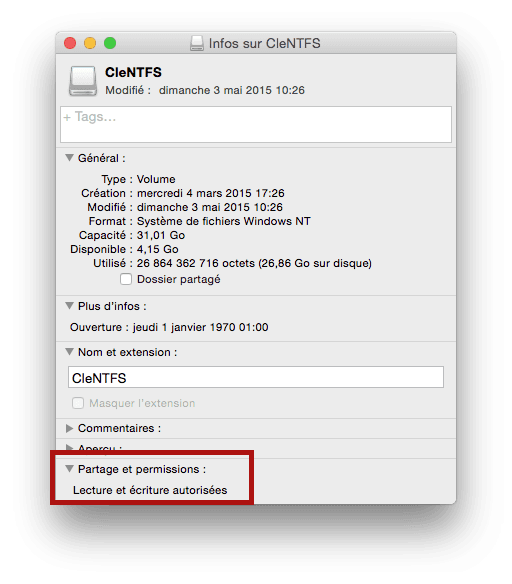
I had a document to print, I went to the printer with my key that was working perfectly on Mac, and since then my key is stuck in read-only mode. Impossible to restore it (I have tried only on Mac for now). So I don't know what's happening, but it's very inconvenient, my two USB keys are unusable now because of this problem.
I think my first key is done for, but for the second one, I would really like to save it, especially since it’s not even 3 days old.
Is there a solution to change the read-only status?
Thank you very much
(MacBook Pro late 2011, OS 10.10.3)
So here it is, I have a problem that is becoming quite annoying:
This problem is recurring, it has happened to me with 2 USB keys
First, I killed a Toshiba 32GB USB3.0 key, formatted in ExFat after switching from Mac (10.10) to Windows 7.
The key was working perfectly well on Mac, and after a file transfer, it was plugged into a computer with Windows 7, the computer completely froze as soon as the key was inserted (even though it wasn't the first time I had used it like that), I had to restart the computer, we try again, it happens again. And since then, the key is damaged, read-only mode is the only option, and it's impossible to format it, there is an error in the file systems of the key (it had been working perfectly for 6 months).
So I bought a Kingston 32GB USB3.0 key, formatted Fat32.
I had a document to print, I went to the printer with my key that was working perfectly on Mac, and since then my key is stuck in read-only mode. Impossible to restore it (I have tried only on Mac for now). So I don't know what's happening, but it's very inconvenient, my two USB keys are unusable now because of this problem.
I think my first key is done for, but for the second one, I would really like to save it, especially since it’s not even 3 days old.
Is there a solution to change the read-only status?
Thank you very much
(MacBook Pro late 2011, OS 10.10.3)
4 answers
-
So this key reads very well and logically in respect of the privileges it is said no. This means that it is not a Unix rights issue that prevents this write. (Mac OS is a BSD distribution based on Unix).
Check if this key has a mechanical write lock. A small sliding button on the key.
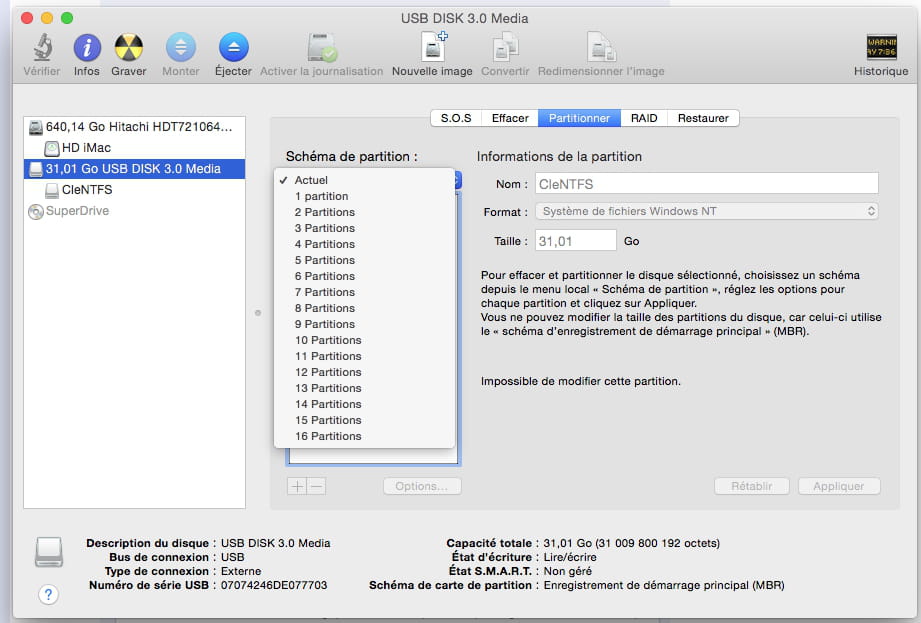
If you go to Disk Utility, but this time on the Partition tab, do you have access to the Current submenu...? You need to select the key physically, not its existing partition...
example
--
To obtain an appropriate response, always indicate your exact system configuration
Have a good day :-) - Francis-
-
You can try to format with the terminal
you then need to type diskutil list
you will then get a result like this
neilg@[~/Sites/wp2]: diskutil list
/dev/disk0
#: TYPE NAME SIZE IDENTIFIER
0: GUID_partition_scheme *500.1 GB disk0
1: EFI EFI 209.7 MB disk0s1
2: Apple_HFS Macintosh HD 499.2 GB disk0s2
3: Apple_Boot Recovery HD 650.0 MB disk0s3
/dev/disk2
#: TYPE NAME SIZE IDENTIFIER
0: FDisk_partition_scheme *2.0 TB disk2
1: Windows_NTFS Elements 2.0 TB disk2s1
/dev/disk3
#: TYPE NAME SIZE IDENTIFIER
0: GUID_partition_scheme *500.1 GB disk3
1: EFI EFI 209.7 MB disk3s1
2: Apple_HFS Macintosh HD 250.0 GB disk3s2
3: Apple_HFS target 249.0 GB disk3s3
4: Apple_Boot Recovery HD 650.0 MB disk3s4
it gives you information about all the disks connected to the Mac
for example, if you want to format disk2, type
diskutil eraseDisk JHFS+ BackupMaster disk2
and you should have a result like
Started erase on disk2
Unmounting disk
Creating the partition map
Waiting for the disks to reappear
Formatting disk2s2 as Mac OS Extended (Journaled) with name BackupMaster
Initialized /dev/rdisk2s2 as a 2 TB case-insensitive HFS Plus volume with a 155648k journal
Mounting disk
Finished erase on disk2
-