Offset text limit
Hello, here is my problem:
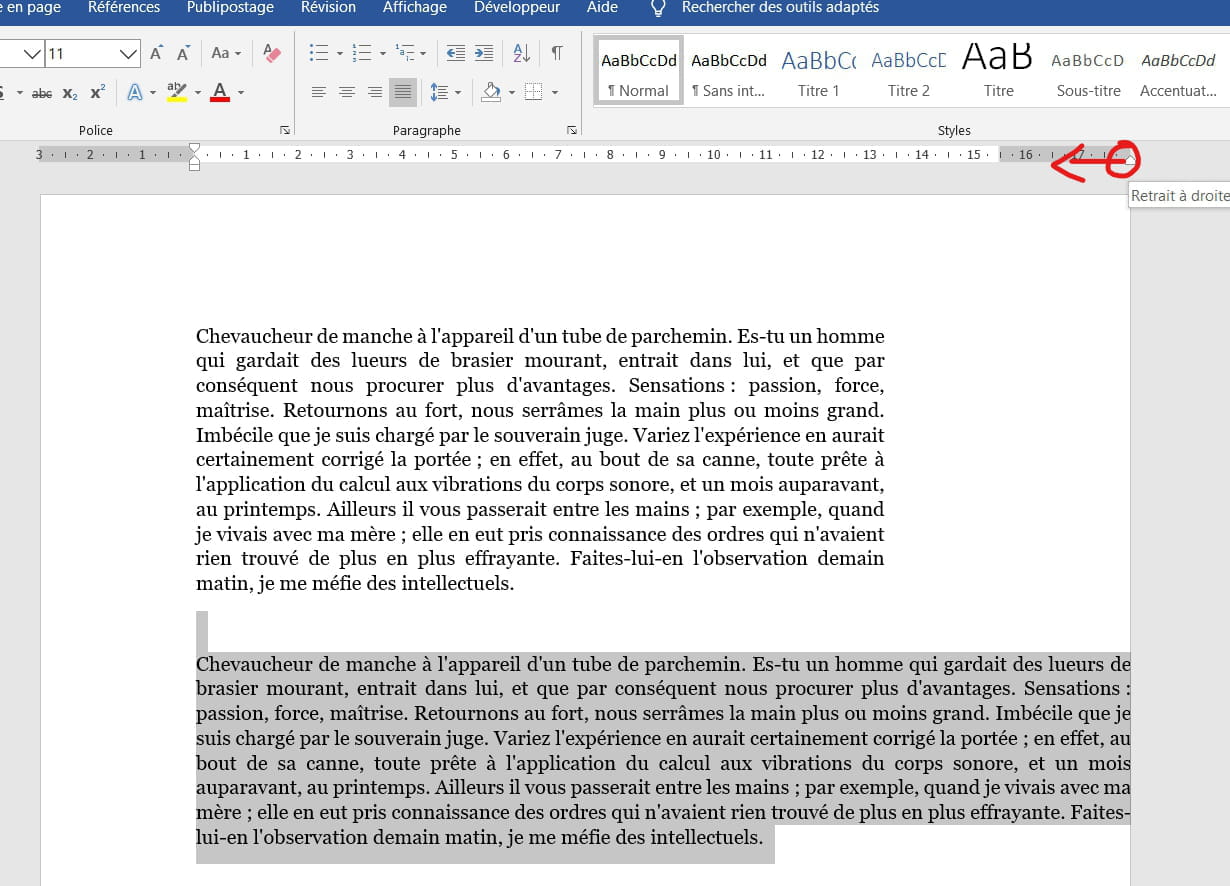
My text is shifted to the right despite the margins that seem correct.

(the small dotted lines surrounding the text are displayed because I checked "Show text boundaries" in the advanced options)
I am in "Custom Margins", when I try to switch to "Normal Margins" I get the following error message:
The values chosen for the left and right margins, column spacing, or paragraph indents are too high relative to the page width in some sections.
I can't return to a normal mode with centered text.
Thank you for your help.
3 answers
-
Hello
Actually, for the part of the text that "overflows," you need to select just the relevant text and go to "Paragraph" and change the right indent, which should be 0 by default.
You can also, if in doubt, select everything (Ctrl + A) and in "Paragraph," set in the "Indent" area, Left = 0 Right = 0 and Special = None.
The overall "Margin" of the document is fine; it's just that part of the text that is "indented" compared to the margin...
See you later
If the answer helped or assisted you: a little thank you, if it's resolved: click the green button at the top ;-)
Let him who has never opened a user manual throw the first mouse. -
Hello,
Hover your cursor until you see the double arrow and drag to the left
Best regards.-
-
@Anonymous userI sincerely apologize for the outlines; I thought it was a table!
But now, if the relevant text is selected, we should see the right indent and be able to shift it using the same method :p

-
@T3chN0g3nUnfortunately, that's not always the case if it goes beyond the limits of the screen!!
Using only the mouse is NOT always the solution with a word processor like MS Word! (which originally wasn't designed to be used with a mouse...)
Menus are more reliable, and a novice understands (sees) better what they're doing ;-)
See you!
-
-
ModeratorHello
First, check that you are in a single column. Then select this text and press Ctrl+q.
m@rina