Cómo eliminar C:\Program Files(x86)\Common Files\Autodesk
bazfile Mensajes publicados 58529 Fecha de registro Estado Moderador Última intervención -
cómo eliminar: C:\Program Files(x86)Common Files\Autodesk.Shared\Network LicenceManager\Service.vbs
Bonjour, j'ai cette indication quand j'allume windows 11, cela apparait depuis que j'ai supprimé autocad
4 respuestas
-
Hola,
Si pagáramos la licencia en lugar de usar cracks, eso no pasaría.
Ver aquí para desactivar el script o, si no queremos leerlo, eliminarlo con Autoruns.
https://forums.autodesk.com/t5/installation-licensing-forum/service-vbs-script-issue/td-p/10614551 -
Hola,
Es la desventaja cuando se utiliza un crack para activar un producto de Autodesk.
Lo traslado al foro de seguridad para que un experto pueda revisar tu mensaje.
Atentamente
-
Hello,
I made this tutorial to delete whatever you want, but be careful, you can delete things you shouldn’t if you’re not attentive.
https://forums.commentcamarche.net/forum/affich-38206831-alors-vous-voulez-supprimer-les-virus-vous-meme-comment
A summary of what to do:
Download RegRun Reanimator
https://greatis.com/security/reanimator.html (Download Mirror 1)
After installation click:
> Fix Problems
> Fix Malware Issues
Attention, it detects risky items, sometimes good, sometimes bad, sometimes important as well, it is important to sort carefully, by deductions or Internet searches and/or VirusTotal* analyses of executable files or drivers, to delete only viruses or useless, unknown and/or poorly viewed by antivirus on VirusTotal.
* https://www.virustotal.com/gui/home/upload
Note: It may be necessary to show hidden files in Windows Explorer display options to see folders and files.
To refine your search, use Filter Set or Inspection Mode and then Filter Set and choose "Display All but Exclude Signed by Microsoft/Google/Greatis", it will still detect false positives or number of good files, and especially in PUPs (Uninstall Section), but less than displaying everything with Display All, view in the tabs at the top one by one to properly check all sections rather than clicking Go Next.
When an item is marked in red (Often Bad), blue or yellow (Unknown or Potentially Suspicious ?) or green (Probably Safe), it is up to the user to judge the relevance of what it detects.
Check the items to delete and not the others and click the red button to delete them, and confirm, continue by clicking Go Next to check in all tabs where items have been detected to review.
Then in the Finish! tab, if needed, click the "Restart is Required" button to restart Windows. -
Hola @Pascalsofia291 EstadoMiembro .
Descargar FRST .
Una vez descargado guarda FRST en el escritorio luego haz clic con el botón derecho del ratón sobre FRST y elige Ejecutar como administrador lo que da lo siguiente:
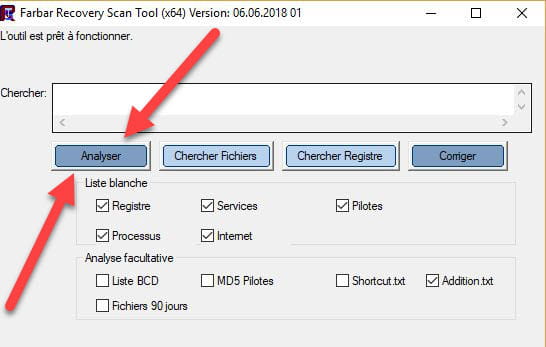

 Espera a que el mensaje la herramienta está lista para funcionar aparezca y luego haz clic en Analizar.
Para información :
 Si la apertura de FRST provoca una alerta de Microsoft Defender no hacer caso, hacer clic en Información adicional y luego en Ejecutar a pesar de ello, ver abajo.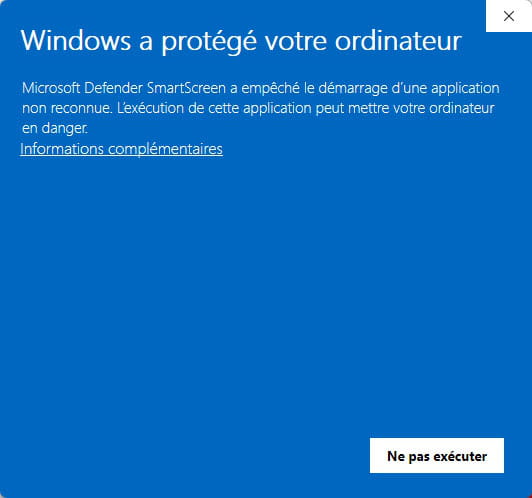

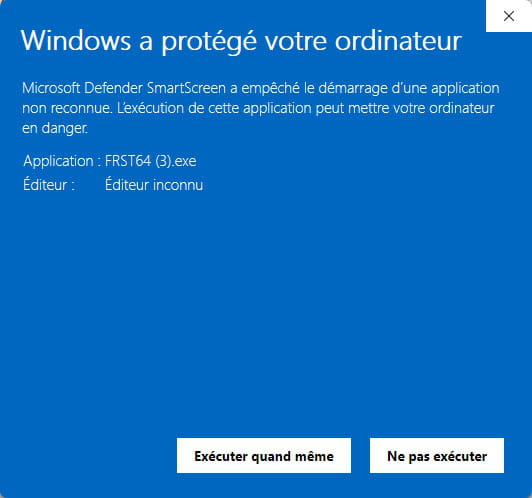
Atención, esperar a que aparezcan los mensajes que indican que el análisis ha terminado.
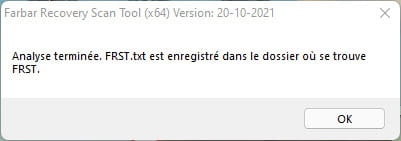


À la fin de l’analyse les deux rapports FRST et Addition seront sur le bureau.

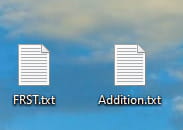


Envía los informes FRST y ADDITION ahttps://pjjoint.malekal.com/ .
Puedes adjuntar luego los dos enlaces generados en https://pjjoint.malekal.com/ en tu respuesta.
bazfile
Moderador/Contribuidor de seguridad.
un saludo, una respuesta, un gracias siempre es agradable.