
Num pad loss in Windows 11
Hello,
my laptop has a keyboard with a numeric keypad that originally worked perfectly.
For some time now, without installing new software or modifying my registry, I no longer have access to the numeric keypad once in Windows, whether in a software application or on the internet.
I should specify that I have tried pressing the numlock key, which works in DOS.
Another piece of information, the numeric keypad is functional at startup and allows me to enter my Windows username, which contains numbers; it locks once I enter Windows.
I am using Windows 11.
Last piece of information, my wife has the same PC, equipped with the same version of Windows, and has done the same updates as I have, and the numeric keypad works for her.
Any ideas?
Thanks in advance.
2 answers
-
Hello,
The proper functioning of the numeric keypad under DOS is correct, otherwise, we wouldn’t be able to make any settings in the BIOS (before starting an operating system, Windows for example).
A malfunction, the cause of which is not useful and obvious to seek, generally comes from the corruption of the keyboard driver.
Depending on its nature (original keyboard or game-specific), you can:
- either check its functionality in the device manager and update the driver or uninstall it so that it reinstalls on startup.
-or look for the latest version of the keyboard driver for this unknown computer and install it manually.
Personally, I would first connect an external keyboard to check the proper functioning of the keypad.
edit :
in the meantime, found this tutorial (following the reading of steph810's post), to try first :
-
Hello, can you please open your terminal and enter this command:
Get-ItemProperty -Path 'HKCU:\Control Panel\Keyboard\'
It should look like this:
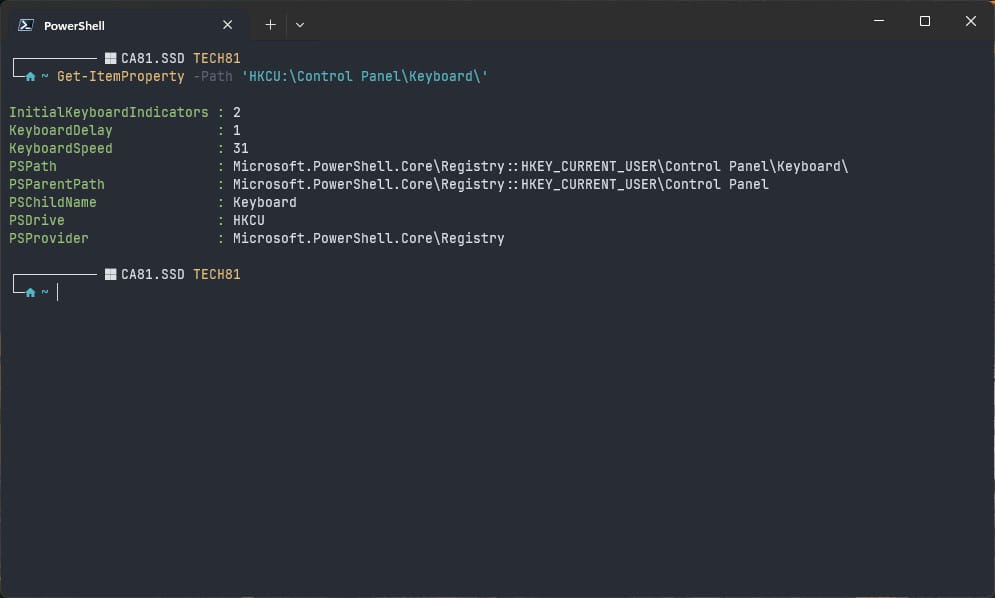
Post an image capture of the window.
If you can't post the capture, tell us what the value at the end of this line InitialKeyboardIndicators is. It should be 2.
If the value is not 2, then change it and enter this command, then restart.
Set-ItemProperty -Path 'HKCU:\Control Panel\Keyboard\' -Name InitialKeyboardIndicators -Value 2 -Force
Let me know if that works or not.
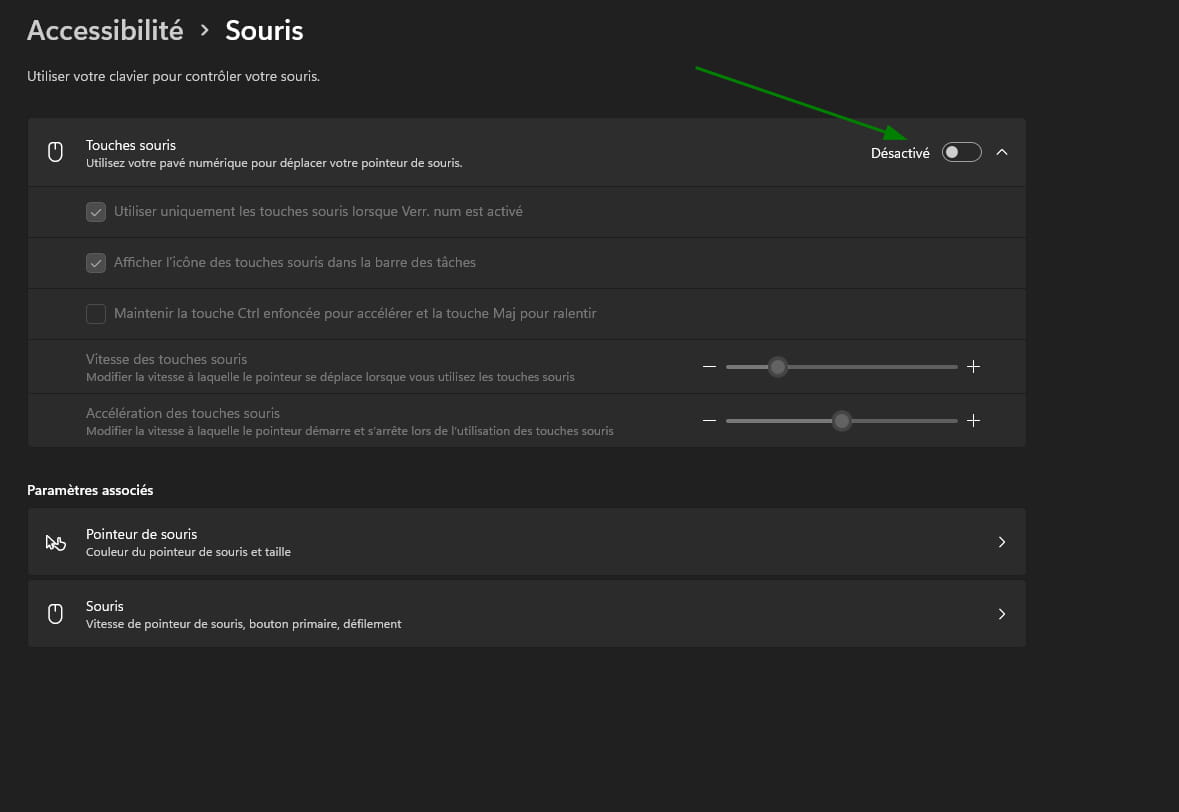
Also check the Windows settings.
Open the Start Menu, settings, Accessibility and make sure mouse keys are disabled.
Thank you
