How to remove the "auto-save" button from the title bar
Manicool01
-
Oli -
Oli -
Hello,
I would like to remove the "auto-save" button that is located in the title bar at the top left.
I had removed it but since an update, it has returned.
I have no need for this button and I don't understand why it is being imposed on us.
Thank you for your help.
I would like to remove the "auto-save" button that is located in the title bar at the top left.
I had removed it but since an update, it has returned.
I have no need for this button and I don't understand why it is being imposed on us.
Thank you for your help.
8 answers
-
I found it.
For those who, like me, cannot remove that ugly OneDrive bar with just a checkbox to deactivate, here is the very simple procedure:
- File / Options
- General
- Uncheck the line "Show save commands in the application header"
There you go, it's done!!!
-
Hello,
The solution that works, but is hardly elegant, is as follows:
- click on the upcoming features button (a megaphone on the right)
- scroll down the list of soon-to-be-available functions to the bottom
- uncheck "Try the new experience"
- restart Office.
Unfortunately, it's only a temporary solution. Thank you MS for its crappy innovations. -
Hello,
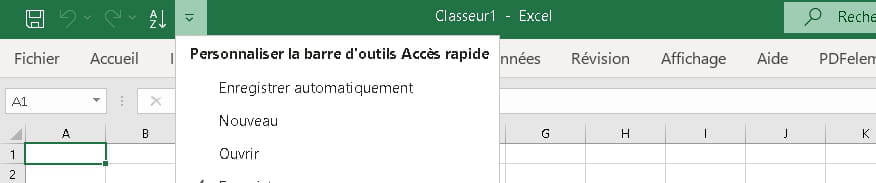
In Excel, click on the arrow to the right of the button and "uncheck" the "save automatically" option, the button will disappear.
Wow.
It's crazy how many people ask for help and don't know how to say thank you.
Windows 10, Brave. -
Thank you Foulq for this response, but unfortunately, since the update, we can’t remove it using the right arrow.
With this arrow, we can only check it to add it to the quick access bar, but we can't remove it from the title bar.-
We are indeed talking about the same thing, the title bar:

I have the Excel version of Office 365 and this is what it looks like:

The button on the title bar has indeed disappeared, at least for me.
It is true that at the top of the dropdown menu, it is written "...quick access toolbar", which is curious.
-
-
Yes, that's right.
And I had the same as you when I removed it the first time.
But since yesterday, I got a new version of Office 365 and the display is no longer the same.
The button is completely on the left with the floppy disk button to save. And next to it, I have the quick access bar with the same as in your pictures. -
-
I think I found it, right-click on the Record command..., menu and delete.

- Hello foulq, thank you for the response but that's not it, your version of Excel is not the same as Manicool01, and your solution only removes the auto-save from the Ribbon and not from the title bar at the very top. (so far so easy ^^)
Like Manicool01, I recently updated to Excel 365 and now we have an "auto-save" visual imposed at the top of the title bar with OneDrive...
I would also like to remove it but I can't find how :( because it's ugly :D
Best regards
-
-
Same issue.
It is important to understand that the "auto-save" command replaces the "save" button, which has been shifted further to the right and a new Excel logo can be found on the left.
As a result, every time we want to save, we have to search for the button somewhere at the top in the title bar!
This is not just aesthetic but a practical issue that wastes time. -
Hello
I have the same issue
I had set my icons, and since the new version and this big "button" on the left, my icons are no longer visible
GRRRRRRRRRRRR
Phil