Disable an input if the select is selected
Solved
ScreamFR
Posted messages
73
Status
Member
-
ScreamFR Posted messages 73 Status Member -
ScreamFR Posted messages 73 Status Member -
```html
<script>
document.addEventListener('DOMContentLoaded', function() {
const selectElement = document.getElementById('article');
const secondInput = document.querySelector('input[name="article"]');
function toggleInput() {
if (selectElement.value === "Pas d'article") {
secondInput.disabled = false;
} else {
secondInput.disabled = true;
}
}
selectElement.addEventListener('change', toggleInput);
toggleInput(); // Call on page load to set the initial state
});
</script>
```
<script>
document.addEventListener('DOMContentLoaded', function() {
const selectElement = document.getElementById('article');
const secondInput = document.querySelector('input[name="article"]');
function toggleInput() {
if (selectElement.value === "Pas d'article") {
secondInput.disabled = false;
} else {
secondInput.disabled = true;
}
}
selectElement.addEventListener('change', toggleInput);
toggleInput(); // Call on page load to set the initial state
});
</script>
```
3 answers
-
Good evening,
the user uses the select
Therefore, it triggers the ONCHANGE event
https://www.w3schools.com/jsref/event_onchange.asp
the second input becomes grayed out
To "target" an HTML element, you can use its id
https://www.w3schools.com/jsref/met_document_getelementbyid.asp
And to disable it, you have to "play" with its disabled attribute
https://www.w3schools.com/tags/att_input_disabled.asp
document.getElementById("id_of_your_input").disabled = true;
There you go, you just need to assemble all that (3 lines of code...) and you're good to go.
A little "if" to reactivate the input if you set the select to empty and it will be perfect.
https://www.w3schools.com/js/js_if_else.asp
Best regards,
Jordane-
Hello, I tried but it doesn't work. I must have made an error, but I can't see where:
Html:
<div class="invoice-item-filed row pt-1 px-1"> <div class="col-12 col-md-4 form-group"> <select name="article" id="article" class="form-control invoice-item-select" onchange="disabled()"> <option value="No article">Select an article</option> <?php foreach($article as $articlee): ?> <option value="<?= $articlee['article'] ?>"><?= $articlee['article'] ?></option> <?php endforeach; ?> </select> </div> <div class="col-md-3 col-12 form-group"> <input name="cout" id="cout" type="number" class="form-control" placeholder="0" onkeyup="myFunction()"> </div> <div class="col-md-3 col-12 form-group"> <input name="quantite" id="quantite" type="number" class="form-control" placeholder="0" onkeyup="myFunction()"> </div> <div class="col-md-2 col-12 form-group"> <strong id="demo" class="text-primary align-middle">00.00 €</strong> </div> <div class="col-md-4 col-12 form-group"> <label for="article">Article :</label> <input name="article" id="newarticle" type="text" class="form-control invoice-item-desc" placeholder="Article name"> </div> <div class="col-md-3 col-12 form-group"> <label for="ref">REF :</label> <input name="referencearticle" id="referencearticle" type="text" class="form-control invoice-item-desc" placeholder="Reference"> </div> </div>
JS:
function disabled(){ if (document.getElementById("article").value == "No article") { document.getElementById("newarticle").disabled = false; }else{ document.getElementById("newarticle").disabled = true; } }
-
-
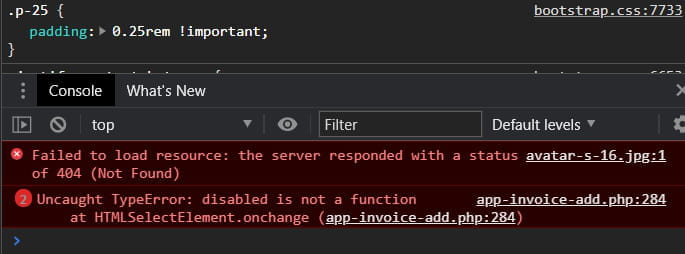
There is indeed an error reported in the browser.

my js page -> myFunction_facture.js
function disabled(){ if (document.getElementById("article").value == "Select an article") { document.getElementById("newarticle").disabled = false; }else{ document.getElementById("newarticle").disabled = true; } }
A part of the HTML with ctrl-u (There are many lines)
<div data-repeater-list="group-a"> <div data-repeater-item> <div class="row mb-50"> <div class="col-3 col-md-4 invoice-item-title">Article</div> <div class="col-3 invoice-item-title">Unit Price</div> <div class="col-3 invoice-item-title">Quantity</div> <div class="col-3 col-md-2 invoice-item-title">Price Excl. Tax</div> </div> <div class="invoice-item d-flex border rounded mb-1"> <div class="invoice-item-filed row pt-1 px-1"> <div class="col-12 col-md-4 form-group"> <select id="article" class="form-control invoice-item-select" onchange="disabled()"> <option value="No article">Select an article</option> <option value="Kinder">Kinder</option> <option value="Coca">Coca</option> </select> </div> <div class="col-md-3 col-12 form-group"> <input name="cost" id="cost" type="number" class="form-control" placeholder="0" onkeyup="myFunction()"> </div> <div class="col-md-3 col-12 form-group"> <input name="quantity" id="quantity" type="number" class="form-control" placeholder="0" onkeyup="myFunction()"> </div> <div class="col-md-2 col-12 form-group">       <strong id="demo" class="text-primary align-middle">00.00 €</strong> </div> <div class="col-md-4 col-12 form-group"> <label for="article">Article :</label> <input name="article" id="newarticle" type="text" class="form-control invoice-item-desc" placeholder="Article name"> </div> <div class="col-md-3 col-12 form-group"> <label for="ref">REF :</label> <input name="referencearticle" id="referencearticle" type="text" class="form-control invoice-item-desc" placeholder="Reference"> </div> </div> <div class="invoice-icon d-flex flex-column justify-content-between border-left p-25"> <div class="dropdown"> <i class="bx bx-cog cursor-pointer dropdown-toggle" data-toggle="dropdown" aria-haspopup="true" aria-expanded="false" role="button"></i> <div class="dropdown-menu p-1"> <div class="row"> <div class="col-12 form-group"> <label for="discount">Discount(%)</label> <input name="discount" id="discount" value="0" type="number" class="form-control" placeholder="discount" maxlength="3" min="0" max="100"> </div> <div class="col-12 form-group"> <label for="tax">Tax(%)</label> <input name="tax" id="tax" value="0" type="number" class="form-control" placeholder="0" maxlength="3" min="0" max="100"> </div> </div> <hr> </div> </div> </div> </div> </div> </div>
at the end of the HTML page:
<!-- BEGIN: Page JS--> <script src="../../../app-assets/js/scripts/pages/app-invoice.js"></script> <script src="../../../app-assets/js/scripts/pages/app-add_facture.js"></script> <script src="../../../app-assets/js/scripts/pages/myFunction_facture.js"></script> <!-- END: Page JS-->
-
Remove the onchange from your select
and replace your js withconst selectElement = document.getElementById("article"); selectElement.addEventListener('change', (event) => { console.log('The value of the select has changed...', selectElement.value); var inp = document.getElementById("newarticle"); if (selectElement.value == "No article") { inp.disabled = false; }else{ inp.disabled = true; } });
Note: You will notice that in the IF ... you need to use the VALUE (No article) and not what is displayed in the list ...- Yes, it works but following that, my insertion no longer works. Let me explain:
In my form, you have the choice to either select a predefined article or to enter an article manually (select predefined article, id=newarticle new article).
But the problem is that when I click on the "Add Article" button, it's "No article" that is selected.
Illustration:
Case when I define an article manually:

As you can see, I wrote "Chair" but it says "No product appears".
In my js code I put conditions but that doesn't change anything (and no errors are reported in the console)
Code js / app-add_facture.js :
$(document).ready(function(){ if(document.getElementById("article").value == "Pas de produit"){ var articlee = $("#newarticle").val(); }else{ var articlee = $("#article").val(); } var id = 1; /*Assigning id and class for tr and td tags for separation.*/ $("#button_send").click(function(){ var newid = id++; $("#table").append(`<tr valign="top" id="${newid}"> <td width="100px" class="numeros${newid}">${$("#numeros").val()}</td> <td width="100px" class="article${newid} line">${articlee}</td> <td width="100px" class="referencearticle${newid} line">${$("#referencearticle").val()}</td> <td width="100px" class="cout${newid}">${$("#cout").val()}</td> <td width="100px" class="quantite${newid}">${$("#quantite").val()}</td> <td width="100px" class="tva${newid}">${$("#tva").val()} %</td> <td width="100px" class="remise${newid}">${$("#remise").val()} %</td> <td width="100px"><a href="javascript:void(0);" class="remCF"><i class='bx bx-x red'></i></a></td></tr>`); });
Html
<div class="invoice-item-filed row pt-1 px-1"> <div class="col-12 col-md-4 form-group"> <select id="article" class="form-control invoice-item-select"> <option value="Pas d'article">Sélectionner un article</option> <?php foreach($article as $articlee): ?> <option value="<?= $articlee['article'] ?>"><?= $articlee['article'] ?></option> <?php endforeach; ?> </select> </div> <div class="col-md-3 col-12 form-group"> <input name="cout" id="cout" type="number" class="form-control" placeholder="0" onkeyup="myFunction()"> </div> <div class="col-md-3 col-12 form-group"> <input name="quantite" id="quantite" type="number" class="form-control" placeholder="0" onkeyup="myFunction()"> </div> <div class="col-md-2 col-12 form-group"> <strong id="demo" class="text-primary align-middle">00.00 €</strong> </div> <div class="col-md-4 col-12 form-group"> <label for="article">Article :</label> <input name="article" id="newarticle" type="text" class="form-control invoice-item-desc" placeholder="Nom de l'article"> </div> <div class="col-md-3 col-12 form-group"> <label for="ref">REF :</label> <input name="referencearticle" id="referencearticle" type="text" class="form-control invoice-item-desc" placeholder="Référence"required> </div> </div>
I looked and the problem I think comes from the info not being transmitted (I must be mistaken).
PS: I don't know if I was supposed to open another page for the question. If I did it wrong, I apologize.
-
-
Already... if I had known you were using jQuery, that would have been good.
Even though the code is not too different from "pure" JS, I would have preferred...
Next... take a good look at your code...
Look, more specifically, at where you placed your IF... it is clearly not in the right place.
PS: In the future, I will ask you to really "organize" your questions well.
The question you asked was about being able to disable an input based on a select.
This question has been addressed and resolved...
So normally, for this "new" issue, you should have created a new discussion.
So you might say... yes, but it's related...
Well... like all questions related to programming... or even computing... everything is related... (if only by the person asking the question...) but they remain distinct issues... and to help us find our way, we open a discussion for each problem.
--
Sincerely,
Jordane