
Maximum RAM on MS-7613 motherboard

JohannNachbar
Posted messages
12
Status
Member
-
JohannNachbar Posted messages 12 Status Member -
JohannNachbar Posted messages 12 Status Member -
Hello everyone,
I have an HP Pavilion p6355fr with its original motherboard MS-7613 (Iona-GL8E) (this double name "MS-Iona" may seem surprising, but that's what the HP support site gives me) and 6 GB of original RAM made up of 3 identical sticks of 2 GB each: DDR3 SDRAM, model MT16JTF25664AZ-1G4F1 by Micron.
Photo of the motherboard:
Photo of the original (working) RAM:
The 6 GB usually does the job, except for certain software like Photoshop CC 2018 and my translation software (when I need to open 800 (yes) files simultaneously): it does struggle a bit there.
So, I decided to install the maximum RAM possible: according to the HP support site, the motherboard can support up to 16 GB of RAM in total if the system is x64 (which is my case), provided that I use all 4 available slots ("Maximum memory only if using 4GB DDR3 DIMM modules").
After many hassles with previous RAM purchases [1st purchase: 2 x 8 GB instead of 4 x 4 GB; 2nd purchase: 4 x 4 GB but with the incompatible frequency of 1,600 MT/s while my motherboard only accepts the following 2 types of RAM: PC3-10600 (DDR3-1333) and PC3-8500 (DDR3-1066)], I thought I had found the right lot with the following RAM: 2 sets of 2 sticks of 4 GB Corsair Value Select 8 GB DDR3 1333MHz CL9 (Kit Dual Channel RAM DDR3 PC10600 - CMV8GX3M2A1333C9).
RAM purchased (2 packs of 2 sticks of 4 GB each, totaling 16 GB in 4 sticks):
I installed them in the 4 slots of my motherboard, but upon starting the computer, nothing happens. Well, the fans start spinning, but nothing shows on the screen.
Are these sticks ultimately compatible with my motherboard? Does the absence of the mention "DIMM" (indicated on the motherboard page of the HP support site) on these sticks signify a compatibility issue? Is a BIOS update necessary? I've heard that such an update is not without risks.
Thank you in advance for your responses :)
Johann
Config: Windows 10 Home x64
Configuration: Windows / Chrome 70.0.3538.102
I have an HP Pavilion p6355fr with its original motherboard MS-7613 (Iona-GL8E) (this double name "MS-Iona" may seem surprising, but that's what the HP support site gives me) and 6 GB of original RAM made up of 3 identical sticks of 2 GB each: DDR3 SDRAM, model MT16JTF25664AZ-1G4F1 by Micron.
Photo of the motherboard:

Photo of the original (working) RAM:
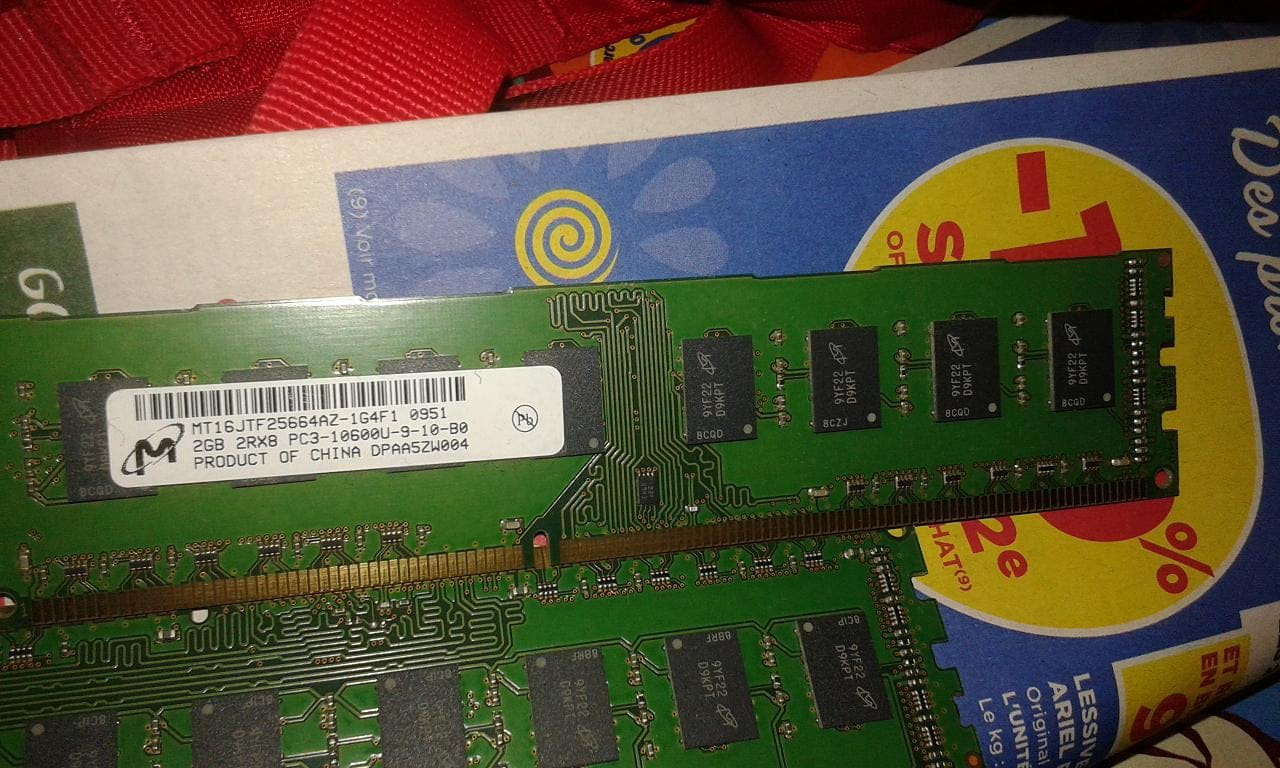
The 6 GB usually does the job, except for certain software like Photoshop CC 2018 and my translation software (when I need to open 800 (yes) files simultaneously): it does struggle a bit there.
So, I decided to install the maximum RAM possible: according to the HP support site, the motherboard can support up to 16 GB of RAM in total if the system is x64 (which is my case), provided that I use all 4 available slots ("Maximum memory only if using 4GB DDR3 DIMM modules").
After many hassles with previous RAM purchases [1st purchase: 2 x 8 GB instead of 4 x 4 GB; 2nd purchase: 4 x 4 GB but with the incompatible frequency of 1,600 MT/s while my motherboard only accepts the following 2 types of RAM: PC3-10600 (DDR3-1333) and PC3-8500 (DDR3-1066)], I thought I had found the right lot with the following RAM: 2 sets of 2 sticks of 4 GB Corsair Value Select 8 GB DDR3 1333MHz CL9 (Kit Dual Channel RAM DDR3 PC10600 - CMV8GX3M2A1333C9).
RAM purchased (2 packs of 2 sticks of 4 GB each, totaling 16 GB in 4 sticks):

I installed them in the 4 slots of my motherboard, but upon starting the computer, nothing happens. Well, the fans start spinning, but nothing shows on the screen.
Are these sticks ultimately compatible with my motherboard? Does the absence of the mention "DIMM" (indicated on the motherboard page of the HP support site) on these sticks signify a compatibility issue? Is a BIOS update necessary? I've heard that such an update is not without risks.
Thank you in advance for your responses :)
Johann
Config: Windows 10 Home x64
Configuration: Windows / Chrome 70.0.3538.102
4 answers
-
I confirm that the last RAM sticks you purchased are compatible:
https://www.ldlc.com/fiche/PB00116719.html
https://support.hp.com/us-en/document/c02014355
Have you tried different configurations for installation? 3 x 4 GB for example? -
Thank you for your response Jithel,
I just tried your suggested configuration, as well as a maximum of others (the "x" indicates a free slot):
4-4-4-4 or 4-x-4-4 or 4-x-4-x-4 = booting but nothing on the screen (not even the BIOS)
2-4-2-4 = the BIOS appears for a short time, then the computer constantly restarts
4-2-4-2 = the BIOS appears longer, then the computer constantly restarts
I even reproduced the original installation (2-x-2-2) by adding a 4 GB in the free slot (just in case), so in 2-4-2-2: the BIOS appears, but then the computer turns off and constantly restarts
For your information, I have 4 slots in total (2 blue + 2 black). The CPU-Z configuration detection software indicates "Dual" in the "Channel #" field, so I assume that Dual Channel is activated):

I’m adding the info about the motherboard. The BIOS may not be up to date, but when I see all the issues this update seems to bring (risk of crashing, even HP's site says so), I'm not keen...

Thank you for your help and possibly that of other internet users! -
Hello,
Well, I believe I tested all possible configurations last night (my PC was starting to dislike these manipulations, and eventually it didn't want to display anything with the original 2-22 config... thankfully, everything is back to normal in the end)
Here's a summary of everything I tested (I'm repeating the tests from my previous message):
(4=new 4 GB stick; 2=existing 2 GB stick; x = empty slot)
4444 = nothing on the screen
4x44 = nothing on the screen
2424 = blue screen at HP startup + repeated shutdown/restart
4242 = blue screen at HP startup + repeated shutdown/restart
4x4x = nothing on the screen
2422 = blue screen at HP startup + repeated shutdown/restart
2xxx = OK
2x2x = OK
x2xx = OK
x2x2 = OK
x4xx = blue screen at HP startup > Windows message "Preparing Automatic Repair" > HP message "Your computer encountered a problem and needs to restart. We will restart the computer for you (stop code: MEMORY MANAGEMENT)" > Windows startup screen freezes quickly (white cursor spins, then freezes). I restarted with the same config: same problem with the frozen Windows cursor
x4x4 = nothing on the screen
44xx = blue screen at HP startup > Windows message "Preparing Automatic Repair" > HP message "Your computer encountered a problem and needs to restart. We will restart the computer for you (stop code: MEMORY MANAGEMENT)" > restart but nothing happens
x4x4 = nothing on the screen
In the end, I reinstalled the original config (2x22) and I thought I was going to lose everything: it showed the same message as in x4xx (with the HP message "Your computer encountered... (stop code: MEMORY MANAGEMENT)"). I uninstalled, then reinstalled the sticks in a different order (just to change something, I admit), and it worked.
I believe that the recurrence of this "MEMORY MANAGEMENT" stop code during my last manipulations is due to the repeated handling of the sticks. Especially since it appears almost three times in succession in configurations that are quite different from each other (including the original 2x22 config).
I also add that the HP message did not include the phrase "We are simply collecting error information" that I sometimes find on the Web. The message was simply as follows (with stop code: MEMORY MANAGEMENT):

In the end, the 4 GB still doesn't work. Neither 1, nor 2, nor 3, nor 4. Regardless of the slot(s). Only configurations with 1, 2, and 3 sticks of 2 GB work.
I think I might need to enter the BIOS, but the idea of playing the sorcerer's apprentice doesn't thrill me much either.
Thanks in advance for your insights!-
The original RAM sticks and those you purchased are compatible. I don't understand how a single brand new 4 GB stick could crash the system. It seems like a defect with the RAM sticks you received. Can you test them on another PC? Or test with other compatible RAM sticks?
I found some topics on the HP website related to your problem:
https://h30434.www3.hp.com/t5/Notebooks-Archive-Read-Only/MS-7613-Iona-GL8E-how-to-upgrade-memory/td-p/2483017
No solution for installing 16 GB of RAM, although it is compatible.
https://h30434.www3.hp.com/t5/Desktop-Boot-and-Lockup/MS-7613-Bios-and-RAM-Problem/td-p/6699520
Crucial claims to be one of the only major RAM manufacturers compatible with older configurations. -
The best thing I can advise you is to stop diagnosing by assuming there is a problem with HP directly. In my opinion, you can install an additional 2 GB of RAM to have 8 GB instead of 6 GB by taking exactly the same RAM stick. It's a good gain because you will have 2 x 2 sticks in dual-channel whereas right now you have 2 sticks in dual-channel and 1 in single.
- Thank you Jithel,
- Option with my new RAM sticks: on the HP forum, a person identified as "HP Representative" (after I shared all my RAM and diagnostic attempts like here) advises me to modify the BIOS: "You need to disable Secure Boot + Enable Legacy Support." I'm not keen on changing the BIOS; it's my work computer and even though I back up very regularly, the risk seems high to me.
- Crucial option: the representative from Crucial's online chat assures me that the suggested RAM (https://www.crucial.fr/compatible-upgrade-for/hP---Compaq/pavilion-p6355fr) is compatible, despite a frequency (1600) different from the motherboard info (1033 and 1066). Returns of the RAM in case of incompatibility are free. However, he somewhat pushed me to buy 2 packs of 2 x 4 GB (more expensive in the end, ref. CT7337395) rather than 4 individual 4 GB sticks (ref. CT2347061): the specifications seem perfectly identical, but the representative assured me that 2 packs of 2 would give optimal performance... We agree that's just nonsense, or am I missing something?
- Option for an additional 2 GB: indeed, that's a possibility I still have, even though I think that an extra 2 GB will be insufficient to run my software well (but it will still be better than my current 6 GB, of course).
Thanks again!
Johann
-
-
-
Hello, I have the same problem with an HP G5320 built with the MS7613 motherboard.
I bought the Corsair ValueSelect 2x4GB DDR3 1333MHz CL9.
Each slot on the motherboard supports a maximum of 4GB of non-ECC RAM, so the Corsairs should be compatible. But I'm encountering the same issue.
With one 4GB Corsair, I can access the BIOS and it's recognized in the BIOS, but Windows doesn't start and it gives a blue screen.
With two Corsair 2x4GB, the fans spin but the BIOS doesn't start.
It seems like there might be a RAM power issue. Currently equipped with Hynix 2x2GB PC3 10600u 1333, I noticed that the label said "eco." I suspect that the Hynix consumes less than the Corsairs, which could explain why it works fine with the Hynix.
I have a 300W power supply.
An i3 550 = 73W
RAM = 2x10W
DVD RW drive = 25W
HDD = 20W
CPU cooler = 3W
CPU fan = 3W
MS 7613 = 20 to 40W
ATI Radeon HD 4600 series GPU = 100 to 150W
So it could be that the overall power supply is undersized if the Corsairs consume more.
I tried unplugging the drives and the HDD to see if I could access the BIOS with the 2x4GB Corsairs, but no, it didn’t change anything.
I need to find a more powerful power supply to do some tests.-
Hello Yoshinobi,
I hadn't actually thought about an underpowered power supply. Since I have almost the same setup as yours (AMD Radeon HD 5450 card, which should consume about the same as yours), I would be curious to hear the results of your experience if you ever change the power supply in your tower.
Thanks in advance :)
-


