HP Photosmart C5180 All-in-One Driver
DANYZZ
Posted messages
3
Status
Member
-
DANYZZ -
DANYZZ -
Hello,
I had to reset my computer to Windows 10 64-bit, but I'm unable to download the complete driver for my printer from the HP website
In the settings, I get the message "not connected". I've already had the scanner not working: I uninstalled the software, re-downloaded it, but it seems that the installation finishes very quickly; I don't even have time to register and when I check the device information it says that the installation needs to be continued ????
Thank you for your help. Danyzz
I had to reset my computer to Windows 10 64-bit, but I'm unable to download the complete driver for my printer from the HP website
In the settings, I get the message "not connected". I've already had the scanner not working: I uninstalled the software, re-downloaded it, but it seems that the installation finishes very quickly; I don't even have time to register and when I check the device information it says that the installation needs to be continued ????
Thank you for your help. Danyzz
11 answers
-
Hello;
I suggest you try to do what is noted below
Below is the procedure (to be followed in order) to completely and cleanly uninstall the HP Photosmart C5180 printer before reinstalling it
1-Download Revo Uninstaller >> HERE
2-Launch Revo Uninstaller and look for anything related to the HP C5180 printer (I think there should only be one folder?) then click on uninstall (at the top)
3-Download Microsoft FixIt >> HERE
4-Launch FixIt >> Accept >> detect problems ....(Recommended) >> Uninstallation Option
5-In the window that opens: Delete all lines concerning the HP C5180 printer and only those (There may be lines with strange names such as for example
" AIO_CDB_product context C 82.0.242.000
" AIO_CDB_software 82.0242.000
" AIO_scan C 82.0242.000
which are also old traces of HP files to delete
6-If Microsoft FixIt does not detect any HP C5180 files as well as AOI_CDB... files, download and install Windows CleanUp Utility from this link then launch this tool and search and remove by "Remove" all these relevant lines and only these
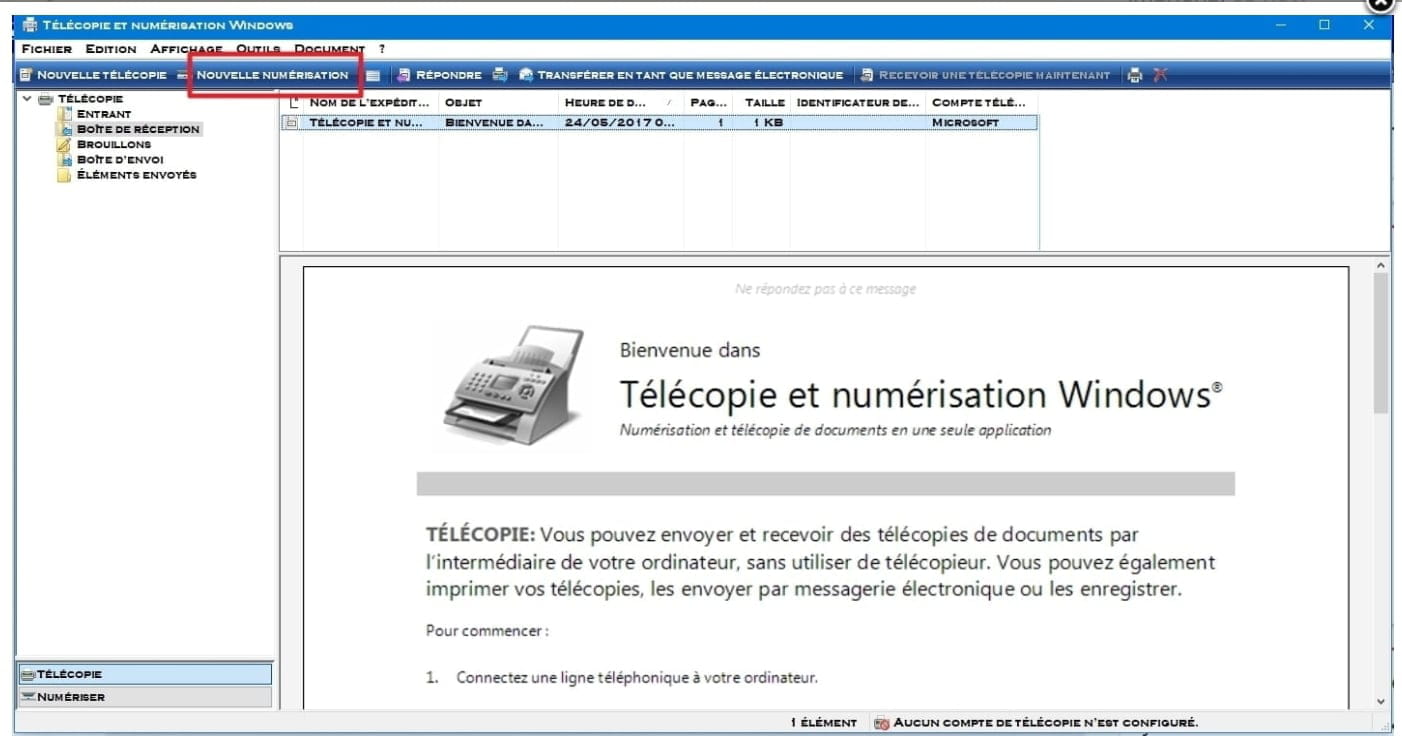
See this image for example
7-Open the registry by typing Regedit in the search bar at the bottom left near the Windows logo >> Launch Regedit and browse the following keys
7/1>> Open the key HKEY_CURRENT_USER then scroll down to find the line concerning HP (printer) and delete that line and only that one
7/2>> Open the key HKEY_LOCAL_MACHINE and do the same as for the previous key
8-Restart the machine >> Disconnect all connections between the printer and the computer
9-Perform a new installation of the printer from the HP site >> HERE
10-Confirm the Windows 10-64 bit operating system >> Next
11-Download the full version of the software and drivers or click directly on this executable (the download can take a relatively long time depending on the availability of the HP server, but please be patient)
12-When the file is downloaded and installed on the desktop >> Launch this file and follow the installation procedure until the end and reconnect the printer connections when the system prompts (Connect USB cable, etc.)
13-Conclusion >> The printer should be installed and recognized by the computer with all its options (Printer - Scanner, etc.)
If there are problems or for more info >> Browse the HP site >> HERE
A+ for your upcoming comments but if none >> Resolved
--
Best regardsAging well: It's preferring the time that remains to the time that passes