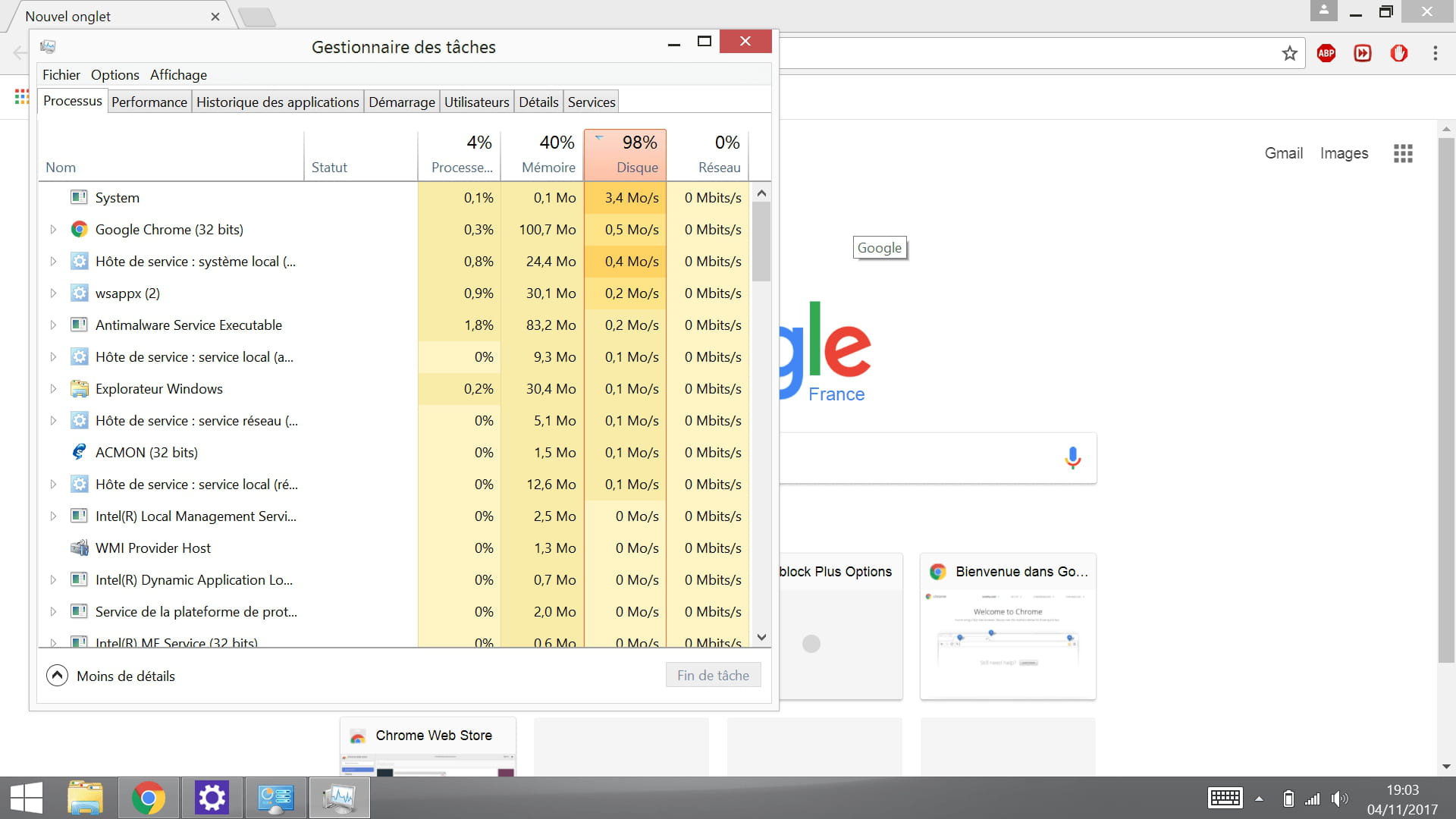
Disk at 100%
Solved
didonexx
-
Malekal_morte- Posted messages 178136 Registration date Status Moderator, Security Contributor Last intervention -
Malekal_morte- Posted messages 178136 Registration date Status Moderator, Security Contributor Last intervention -
Hello,
I know there are many topics on this theme, but I can't find an effective solution.
My disk is always at 100% in the task manager, I've reinstalled my computer, I've disabled superfetch, Windows search. I'm on Windows 8.1
Here is a system diagnostic report
http://www.cjoint.com/c/GKcmc0AWM5f
I know there are many topics on this theme, but I can't find an effective solution.
My disk is always at 100% in the task manager, I've reinstalled my computer, I've disabled superfetch, Windows search. I'm on Windows 8.1
Here is a system diagnostic report
http://www.cjoint.com/c/GKcmc0AWM5f
7 answers
-
Hello,
Start by performing a DISM Repair
Right-click on the "Start" menu and then "Command Prompt (admin)" or by using a Cortana search:
https://www.malekal.com/wp-content/uploads/ouvrir-invite-commandes-administrateur-Windows10.gif
In the black window, enter the following two commands while letting the scan perform:
DISM /Online /Cleanup-image /Scanhealth
DISM /Online /Cleanup-image /Restorehealth
(be careful, there is a space in front of each command starting with / /Online /Cleanup-image etc)
Restart.
Then:
Follow the FRST tutorial. ( take your time to read carefully - everything is well explained ).
Download and run the FRST scan,
Wait for the scan to finish, a message will indicate that the analysis is complete.
Three FRST reports will be generated:- FRST.txt
- Shortcut.txt
- Additionnal.txt
Send these 3 reports to the site https://pjjoint.malekal.com/ to share them.
In return, provide the 3 pjjoint links that lead to the reports here in a new response so that we can review them.
--
Please press any key to continue the disinfection...