
Format Factory : DVD > AVI - Page 2
Solved
Previous
- 1
- 2
-
Welcome Gej...62, it's good that you're passing by, the conversation is open to everyone.
So how can I tell if my video is interlaced and if the frame rate is good?? I think it has to do with the image quality, like a pixelated image; these aren't the blurred trails of some flat screens, I have the impression that's what you're talking about, right? In my case, they are sharp, if you want, the person moving has little rectangular lines on the arm that moves, for example, sharp, it's a bit striped; I don't know how to describe it...
Ziggourat
the file, for example, saved unedited, here are its characteristics:
size 1.5 GB for 1h10
sound: MP3 stereo 48000hz 320 kbps
image: 544x576 16:9 15000 kbps 25 fps
(I copied what I see in Freemake under the name of the imported file; I don't know if that's what you wanted, I don't understand any of these things written lol fps... kbps...)
If I look by right-clicking on the file, I have:
data rate 2865 kbits/s
total bitrate 3121 kbits/s
audio 256 kbits/s
--
Thank you for your help :) -
Hello Inana, hello Ziggourat.
Thank you for inviting me :-)
"As for '...there are sorts of trails on the movements (like pixels but not square, in lines along the edge of the moving subject).' I don't quite see where this is coming from and personally, I have never encountered this kind of effect."
Look at the types of artifacts (present in the help of VirtualDub)
where the causes and remedies are listed. I will cite a few.
Mattress (compression artifact)
Interlacing (interlacing artifact)
Banding (quantization artifact)
Stair-step artifact (this one could also be it)
This artifact may indicate that a poor nuance processing algorithm is used for resizing the video. More specifically, using a nearest neighbor or point sampling algorithm can result in a stair-step appearance due to the lack of 'smooth' interpolation during resizing, which means that rows and columns are simply duplicated or removed instead of being blended to change the video dimensions. This results in the appearance of a slight wrinkle in the image.
Poor resizing processing is difficult to undo if you no longer have the source, but if you can replicate the poor processing, try to postpone the resizing operations until later so that you can use the high-quality resizing filter from VirtualDub (bilinear or bicubic filter). For example, if you are trying to capture a digital video at a resolution of 480x360, try using the resolution of 640x480 or 640x576 - or something close to the native resolution - and resize after processing. But you will still need more CPU power and recording space.
Rainbow (pitch/stride error)
By having the names of the different types, I think you will surely find a representative photo of your defect on Google, especially if the defect is not present on the source. I believe Ziggourat will complement with relevant links.
Best regards. -
Original image dimensions: 544x576 in 16:9, it probably comes from ADSLTV.
However, when you transform your file, you set it to 1024x576...
In terms of compression, you can't create something from what doesn't exist in principle, so in my opinion, you're using dimensions that are too large.
Basically, reducing the resolution doesn't pose much of a problem, but increasing it creates "points" constituting the image from nothing, so the software will extrapolate to give the illusion of a complete image... but that's not the case in reality! I'm using terms that may not be entirely accurate, but it's to simplify the explanation.
To go further, you have three algorithms for resizing a file (Bilinear, Bicubic, and Lanczos), but I don't know which one Freemake uses.
For slight enlargement, bicubic seems more suitable than bilinear because it does not produce pixelation, source: http://fr.lprod.org/wiki/doku.php/video:cinelerra:manuel:sortievideo
All this is, of course, to be tested, as I'm summarizing what I read here and there, so it's relative...
So as gej62 says, if you want to enlarge your image, you will need to use filters in VirtualDub (Avisynth can probably do it too, but I don't know enough about scripting) like the MSU Deblocking Filter v2.2, the MSU Smart Deblocking Filter, or others to eliminate your artifacts.
See the links under this YouTube video for example: https://www.youtube.com/watch?v=8eOiPMovgfs
For MSU, see here for example:
- http://www.compression.ru/video/deblocking/index_en.html
- http://www.compression.ru/video/deblocking/smartdeblocking_en.html
After all, it’s a matter of taste as mentioned on this page, there are "2 schools": Bilinear < Bicubic < Lanczos (it's more complex, hence "better") and bilinear for reducing an image and bicubic/lanczos for enlarging it.
Link: https://forum.hardware.fr/hfr/VideoSon/Traitement-Video/bilineaire-bicubique-lanczos-sujet_85947_1.htm
Certain links contain screenshots to give you an idea of the output image, but the best is still to test it yourself.
Finally, personally, for my files coming from recording with HomePlayer (480x576 in 16:9); I resize to 608x342 with Precise Bicubic 0.75 (the default setting) using VirtualDub.
I just checked on the 94 cm LCD television, and the file plays relatively well.
Edit: I'm going to test it on the movie The Godfather 2 that I recorded with ADSLTV, 544x576 in MPEG-2 with a bitrate of only 2754 Kbps and audio in Stereo or MPEG-2.
Your bit rate of 15000 Kbps seems exaggerated in Freemake, a value of around 2800 Kbps seems more appropriate, but what you have is probably true ;)
Long live Bobo! ~ Little fish will become big ~
-
Arf, thank you very much for the effort you've put in, but I would have really liked to know what to enter in the custom window for each field of Freemake Video Converter for a file saved on my Freebox with the characteristics I mentioned earlier :(
Image size: ? (I'll leave original)
Video codec: ? (I believe I understood that I should put XVID since I'm outputting a DIVX?)
Frame rate:
Type bitrate:
Bitrate:
Audio codec: ? (I'm putting MP3)
Channels: ?
Sample rate: ? (there I'm lost)
Bitrate: ? (same, I'm lost but I want decent sound so maybe 192 so I don't have to turn up the volume too much on my TV later?)
I can't hear anything about the rest.
Just if I understood correctly, I can respond that when I convert a file saved by Freebox, in the customization window, in "image size" I leave "original size," so it is not due to an enlargement presumably.
--
Thank you for your help :) -
Try on a snippet of the file (where you notice defects in your output file), using parameters such as, for an AVI file: XviD video codec, at least 1500 Kbps bitrate (the original bitrate should be around 2500 Kbps; Freemake's indications are "false"). For audio, set MP3 to 192 Kbps while leaving the same frequency (44.1 or 48.000 KHz), for example.
Do not change other parameters like the Framerate regarding video, for instance.
The audio bitrate value has nothing to do with the volume, by the way.
This is just a suggestion, an MP4 file with the H264 codec and audio in AAC might also work since you seem capable of reading that.
The MPG (MPEG-2) if you can read it would likely work too.
P.S.: I've recently discovered that you can have an AVI file (XviD), for example, in 720x576 with a 16:9 aspect ratio. I don't master the subject yet, so I'm not suggesting it, but just know that it's possible.Long live Bobo! ~ Little fish will grow big ~
-
There is one point I haven't mentioned here, gej62 knows more about it than I do, it's the bits to pixels ratio (this ratio is indicative, in short...): https://forum.hardware.fr/hfr/VideoSon/Traitement-Video/choisir-explication-svp-sujet_46093_1.htm
See compacted with MediaInfo http://image.noelshack.com/fichiers/2012/48/1354209461-mpg-544x576-01.jpg
The file with the really increased resolution is "bad" even on the computer (apparent pixels) so I highly doubt that the rendering on an LCD television would be correct.
Personally, I only use Freemake when I want to quickly transform a file without the intention of keeping it. Nonetheless, it remains a very handy and quite "good" software ;)
--Long live Bobo! ~ A little fish will grow up ~
-
Hello to you
The use of "bit/pixel" is a good indicator and well explained in the link.
I aim to keep it at 0.21 for an AVI (XVID+MP3) not exceeding the resolution 720x576 knowing that if we want to fit a video into 700MB
while the bitrate is already low, it's enough to adjust the resolution to reach that value. But well, this is just for reference, but Ziggourat's findings show it well.
Regarding Freemake, I share the same opinion as Ziggourat, we recommend it because it is user-friendly and generally meets the needs for tasks like "rotating a video, cutting a video, etc." The fact that it also accepts a good number of "formats" makes it an ideal tool for those starting out in this exercise.
Well, let's get back to our sheep (not angry :-)
The settings proposed by Ziggourat are correct, but as he points out
(the indications from Freemake are "false").
By digging into the software, I did see the profiles used; some can be modified, particularly on H.264, but nothing convincing regarding XVID.
For adjustment (adjustment algorithm), perhaps try "auto-adjust."
If there is aliasing around the characters, it is certainly due to a poor adjustment (subject to verification)
If Ziggourat could provide us with a small screenshot of the photos of the defects in the help of VirtualDub. That would really help.
Best regards. -
Here I am again...
I have a little problem, when I open a video from my PC in FreemakeVC, and I cut it, I see the time reduced from 51 min to 7 min in the editing window, I click OK, but then when I go to the source folder of the file I imported, nothing has changed, the file is still 51 min long!!!
I don't know how to save my modifications, it hasn't been done automatically for a while and there's no "file > save as"...
Can you explain to me how to save my modified files under a different name so that it is properly taken into account? It's really important to me...
Thank you
--
Thank you for your help :) -
Hi again ;-)
With Freemake, you need to delimit the start and end points with time markers and then cut with the scissors.
See image (click on it to enlarge):
Only once you have made all your "cuts" do you press OK before starting the conversion to the desired "format."
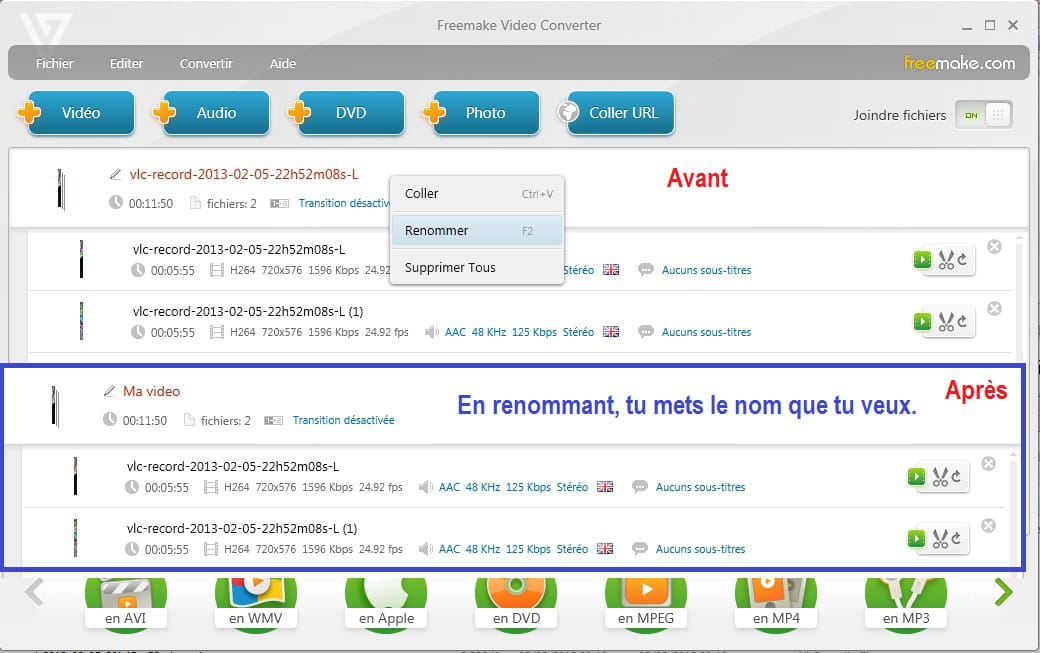
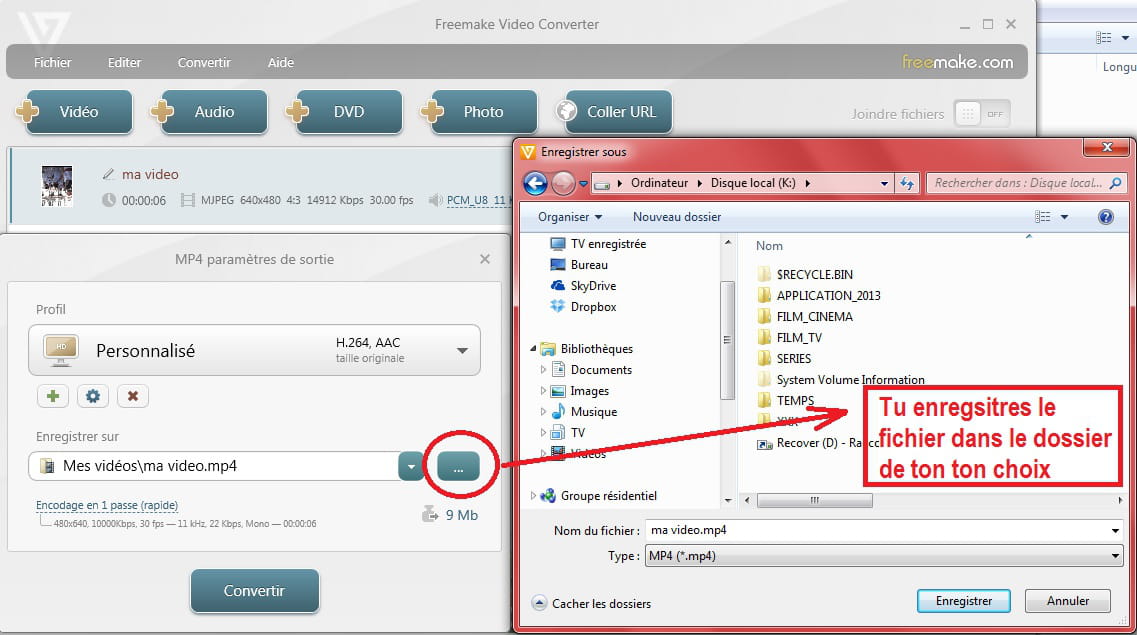
To rename, you have two ways to do it:
1: directly on the video name in the software (F2 key if desktop PC):
2- in the folder where your video will be stored, giving it the name you want:
Here I could have named it "biddy movie" for example instead of "my video."
P.S.: I'm not using the latest version but version 4.1.6.1 of this software, which seems to be the one before the latest.
--
Long live Bobo! ~ Little fish will grow big ~ -
Hello,
I would like to save a DVD to my PC in AVI format using Format Factory.
I have done it before and have never had any issues.
However, today, I am not being offered the French language option for saving my DVD, and the default language is English.
What should I do? It's a DVD that I bought in France and is indeed in French.
Thank you in advance for your responses.-
Hello,
Actually, there is always a choice of language, but it's true that the default language is English.
To convert a DVD to AVI (in the simplest way):
After launching the program and inserting the DVD into your drive
1) you choose DVD/CD/ISO ROM peripheral
2) then you click on the first icon DVD to video file
3) then you choose the destination format (for example, AVI)
4) and there you choose your language in the audio stream
5) then you finish by clicking on convert
I won't go further, but you can choose the size and quality of the video or even its creation location...
I hope I have answered your question
Best regards, Louax -
-
-
-
-
re
yes, you can encode an iso image to avi, go to the DVD CD ISO drive
click then add file appears all supported iso files
with dvd shrink you save your dvd to the hard drive no need to burn it
click on dvd to video file then below dvd there is a folder you select it by clicking on it then browse and point to your folder you choose
avi and here we go
slts


Previous
- 1
- 2