
Windows Defender: Icon Disappeared from the Taskbar

pistouri
Posted messages
19010
Registration date
Status
Contributor
Last intervention
Ambassador
-
mpuissance4 Posted messages 14750 Registration date Status Contributor Last intervention -
mpuissance4 Posted messages 14750 Registration date Status Contributor Last intervention -
The Windows Defender icon no longer appears or cannot be opened on the taskbar or in the notification area due to, for example, an update or the uninstallation of a third-party antivirus.

Try the procedures below to restore the Windows Defender icon on the taskbar or in the notification area.
Section -► Notification area.
Click on the line -► Select which icons appear on the taskbar
Highlight the line --►Windows Security notification icon

Restart the PC
Double-click the downloaded .reg file to merge it.
Click on Run, OK (UAC), Yes and OK to approve the merge.
Or right-click on the reg file and then Merge

Restart the PC
Scroll down to the letter H and right-click on -►SecurityHealthSystray
Then -►Send to -►Desktop (Create shortcut)

Keyboard shortcut Windows + R to open the Startup folder.
Type -► shell:startup
Then OK
Or right-click on the Start button and then click on -►Run
Copy/paste or drag the shortcut SecurityHealthSystray into the Startup folder.
Restart the PC


Tab -► Startup
Enable -► Windows Security notification icon
Restart the PC.
In the search box on the taskbar type -►powershell
Right-click on Windows Powershell -►Run as administrator

In the PowerShell console, copy and paste the command below and press Enter on the keyboard.
Get-AppxPackage *Microsoft.Windows.SecHealthUI* | Reset-AppxPackage

Once the command is executed, exit the PowerShell console.
Restart the PC.
Right-click on cmd ►Run as administrator
In the Command Prompt console copy and paste the command below and press Enter on the keyboard.
PowerShell -ExecutionPolicy Unrestricted -Command "& {$manifest = (Get-AppxPackage *Microsoft.Windows.SecHealthUI*).InstallLocation + '\AppxManifest.xml' ; Add-AppxPackage -DisableDevelopmentMode -Register $manifest}"

Restart the PC

Run the file.
Restart the PC.
Then click on OK
Go to this registry key:
HKEY_LOCAL_MACHINE\SOFTWARE\Microsoft\Windows Defender
On the right, modify the values DisableAntiSpyware and DisableAntiVirus
In Value data set the number -►0
(In hexadecimal)

Close the Windows registry.
Restart the PC.

Try the procedures below to restore the Windows Defender icon on the taskbar or in the notification area.
- Show Windows Defender from Settings
- Reg file Enable Windows Security
- SecurityHealthSystray.exe at startup
- Task Manager
- Reset Defender with Powershell
- Reinstall Windows Security with the Command Prompt
- Reactivate Windows Defender
Show Windows Defender from Settings
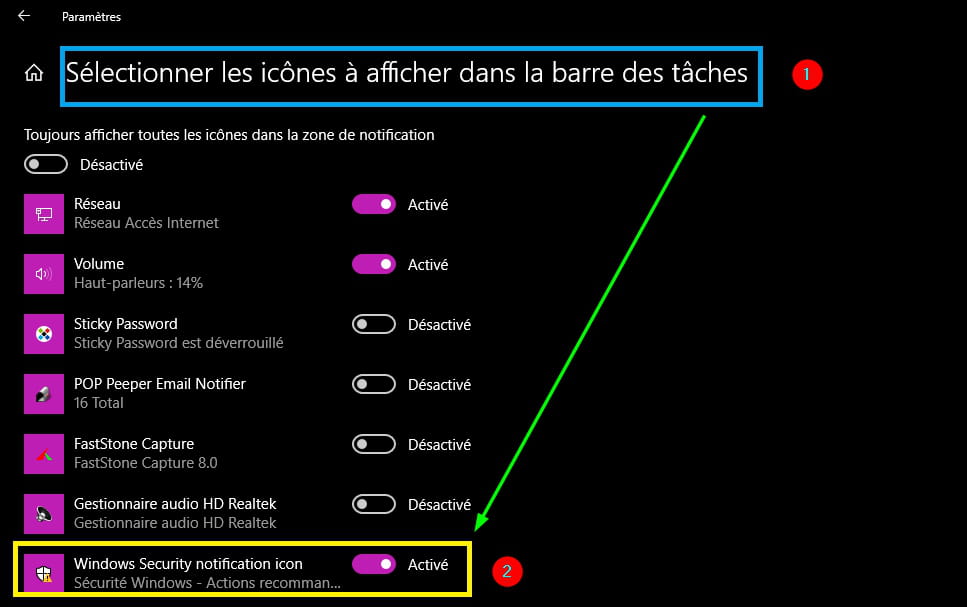
Open Settings ► Personalization ► TaskbarSection -► Notification area.
Click on the line -► Select which icons appear on the taskbar
Highlight the line --►Windows Security notification icon
Restart the PC
Reg file Enable Windows Security
Save Enable_Windows_Security_notification_icon_for_all_usersDouble-click the downloaded .reg file to merge it.
Click on Run, OK (UAC), Yes and OK to approve the merge.
Or right-click on the reg file and then Merge
Restart the PC
SecurityHealthSystray.exe at startup
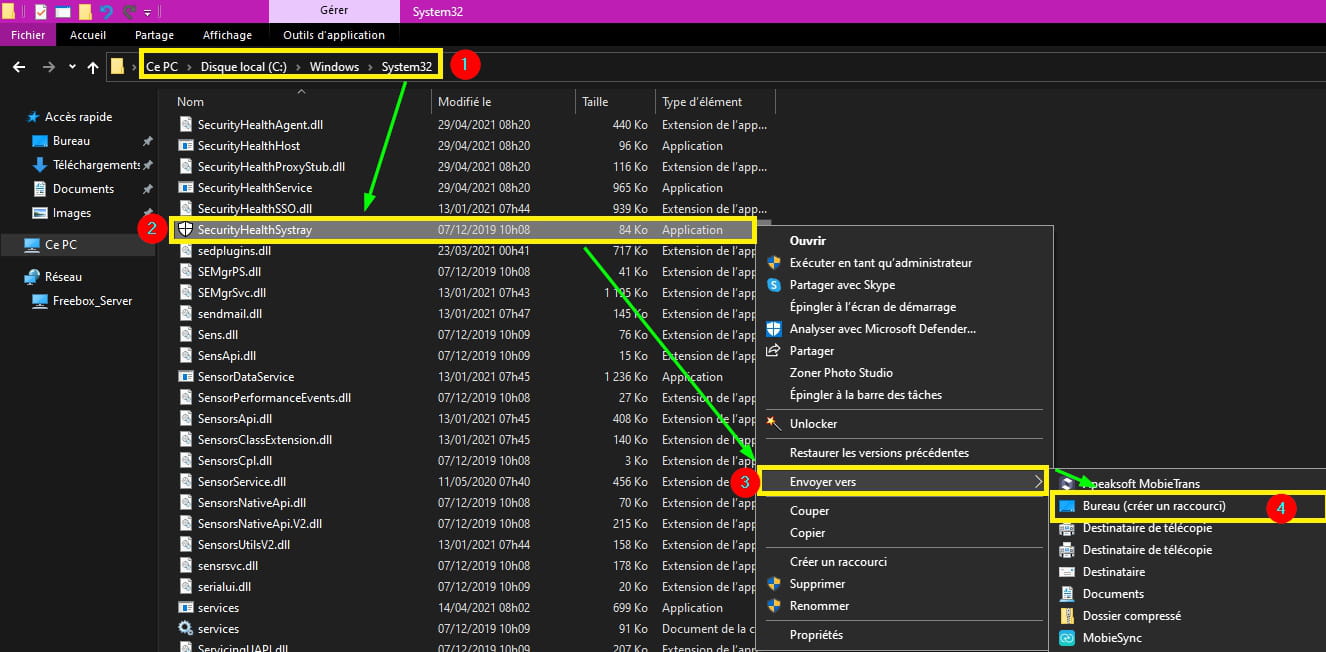
Open and go to ► This PC -► Windows -► System32Scroll down to the letter H and right-click on -►SecurityHealthSystray
Then -►Send to -►Desktop (Create shortcut)
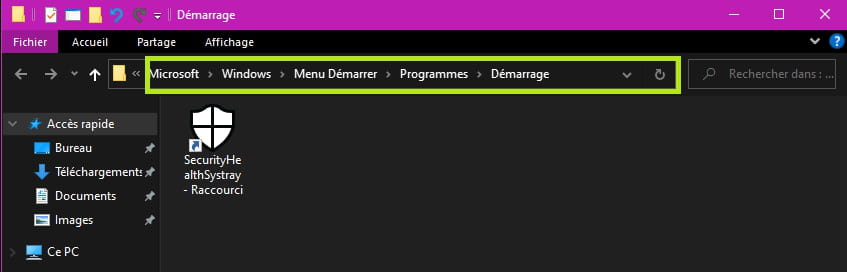
Keyboard shortcut Windows + R to open the Startup folder.
Type -► shell:startup
Then OK
Or right-click on the Start button and then click on -►Run
Copy/paste or drag the shortcut SecurityHealthSystray into the Startup folder.
Restart the PC

Task Manager
Right-click on the taskbar -►Task ManagerTab -► Startup
Enable -► Windows Security notification icon

Restart the PC.
Reset Defender with Powershell
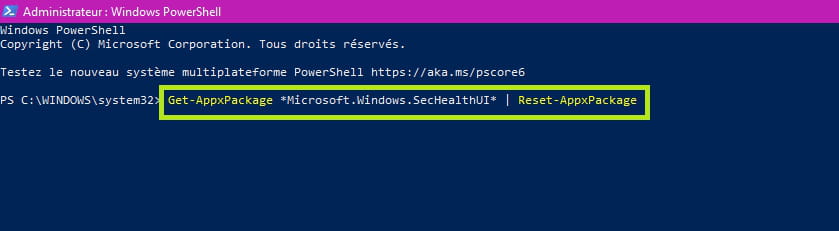
Reset Windows Security application from Powershell.In the search box on the taskbar type -►powershell
Right-click on Windows Powershell -►Run as administrator

In the PowerShell console, copy and paste the command below and press Enter on the keyboard.
Get-AppxPackage *Microsoft.Windows.SecHealthUI* | Reset-AppxPackage
Once the command is executed, exit the PowerShell console.
Restart the PC.
Reinstall Windows Security with the Command Prompt
In the search box on the taskbar type -►cmdRight-click on cmd ►Run as administrator
In the Command Prompt console copy and paste the command below and press Enter on the keyboard.
PowerShell -ExecutionPolicy Unrestricted -Command "& {$manifest = (Get-AppxPackage *Microsoft.Windows.SecHealthUI*).InstallLocation + '\AppxManifest.xml' ; Add-AppxPackage -DisableDevelopmentMode -Register $manifest}"

Restart the PC
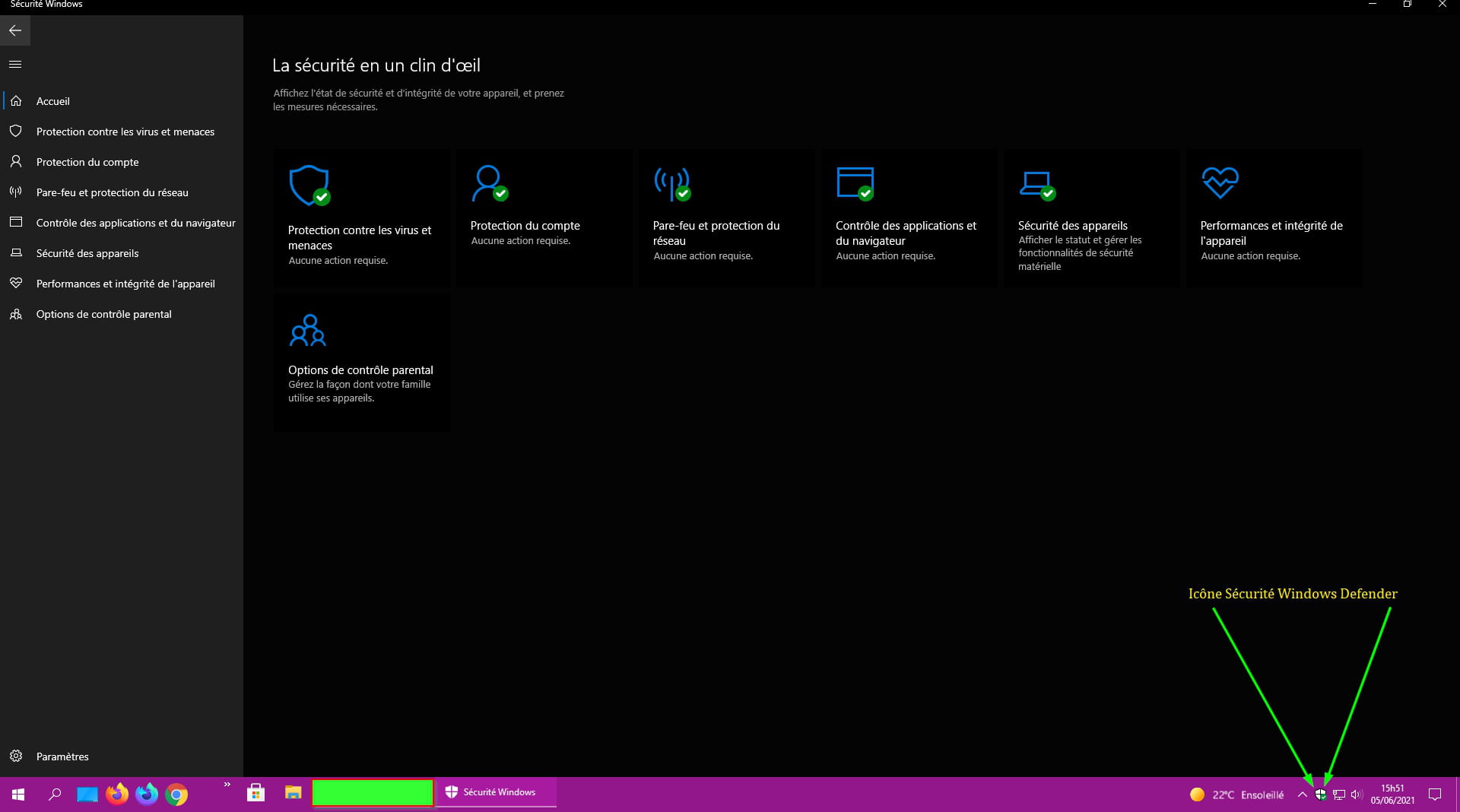
Reactivate Windows Defender
Save the reg file ==► activate_windows_defenderRun the file.
Restart the PC.
Manual method in the Windows registry
Keyboard shortcut Windows + R then type -► regeditThen click on OK
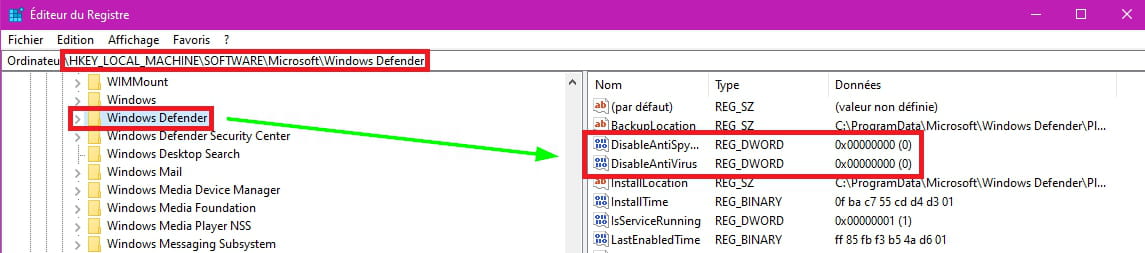
Go to this registry key:
HKEY_LOCAL_MACHINE\SOFTWARE\Microsoft\Windows Defender
On the right, modify the values DisableAntiSpyware and DisableAntiVirus
In Value data set the number -►0
(In hexadecimal)
Close the Windows registry.
Restart the PC.
1 answer
-
Hello
Thank you very much pistouri
I tried the icon and it came back but I still have this

Thank you for your help I have also done this https://docs.microsoft.com/fr-fr/dotnet/framework/install/application-not-started?version=%28null%29&processName=Black.exe&platform=0009&osver=6&isServer=0&shimver=4.0.30319.0
Best regards MP4
