File Transfer via Wi-Fi between a Smartphone and a PC

Pierr10
Posted messages
13860
Registration date
Status
Moderator
Last intervention
-
Pierr10 Posted messages 13860 Registration date Status Moderator Last intervention -
Pierr10 Posted messages 13860 Registration date Status Moderator Last intervention -
Need to transfer files between your Android smartphone and your computer? Try direct Wi-Fi connection, simple and fast!

There are several ways to connect a smartphone to a computer to exchange files (photos or others). The most common is a wired connection via USB cable (see our practical guide on the subject). But you can also connect the devices wirelessly, using Wi-Fi.
This exchange method is fast and flexible. It can be used for all types of files. All operations are managed from the smartphone, regardless of the direction of the exchange. You just need to use a file management app on the smartphone that supports network connections.

There are of course other equivalent applications with similar features.
The free version of File Manager + displays a small ad banner at the bottom of the screen, but it's not really bothersome.


The transfer begins. In general, the operation is very quick. When everything is done, disable Wi-Fi on the smartphone if you no longer need it. (Wi-Fi can consume quite a bit of energy on some smartphones).
What is well understood is clearly stated,
And the words to say it come easily.
(Boileau)
- Install a file management app on the smartphone
- Set up the file manager
- Share folders on the computer
- Transfer files
There are several ways to connect a smartphone to a computer to exchange files (photos or others). The most common is a wired connection via USB cable (see our practical guide on the subject). But you can also connect the devices wirelessly, using Wi-Fi.
This exchange method is fast and flexible. It can be used for all types of files. All operations are managed from the smartphone, regardless of the direction of the exchange. You just need to use a file management app on the smartphone that supports network connections.
Install a file management app on the smartphone
On the smartphone, you need a file manager capable of managing the network. This is not the case with the manager originally installed on the smartphone. You can find such managers on the Google Play Store. This tutorial is done using File Manager +. There are of course other equivalent applications with similar features.
The free version of File Manager + displays a small ad banner at the bottom of the screen, but it's not really bothersome.
Set up the file manager
- Turn on Wi-Fi on your smartphone and then open the file manager.
- On first use, click on Remote on the homepage.

- In the next window, click on Add a remote location.
- Then click on Local network.

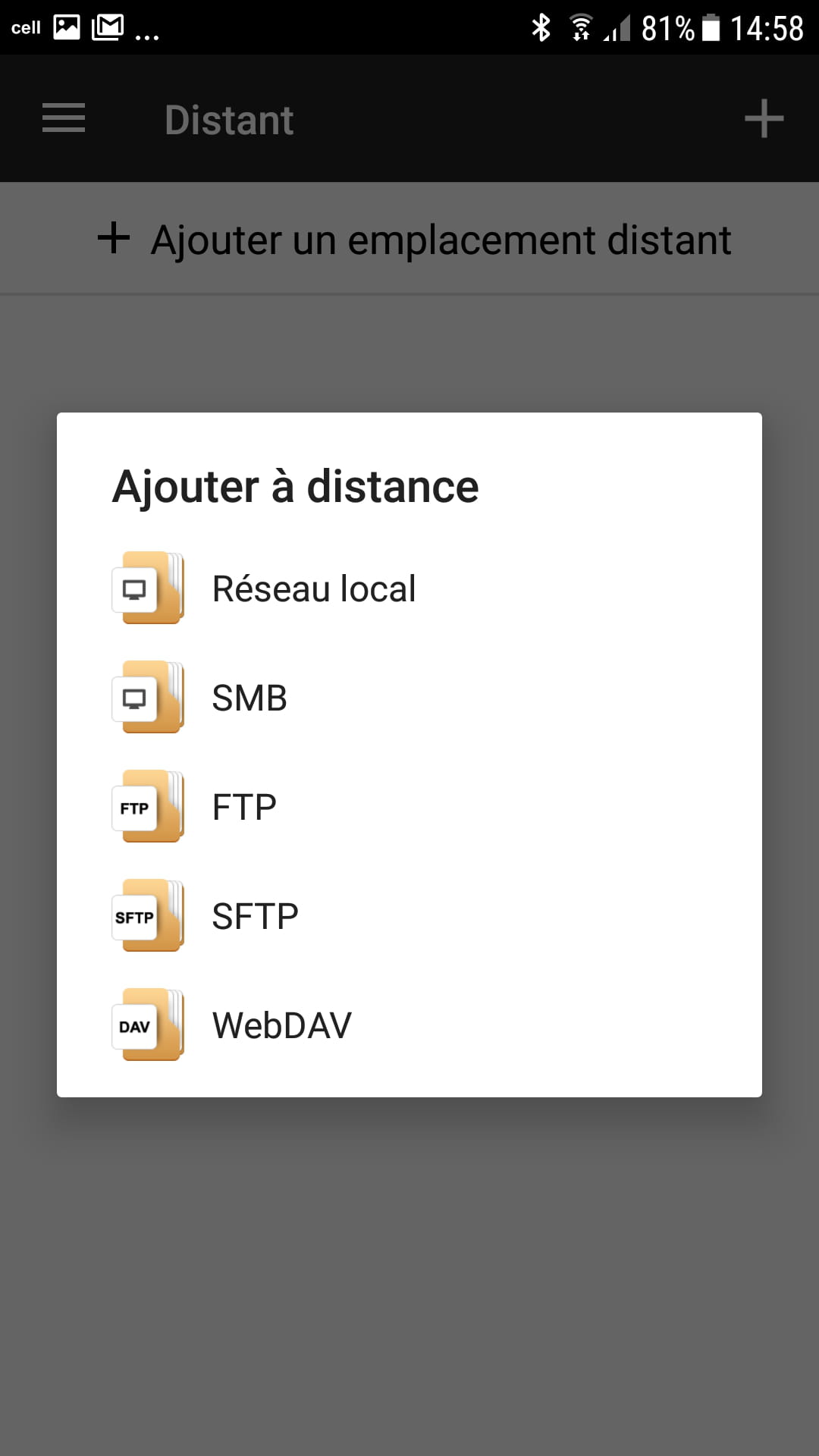
- The smartphone detects the computers connected to the network. Click on the name of the computer to add and complete the window with the username (the one for the user account on the PC) and the associated password (the one you enter on the Windows unlock screen).

- Click on OK to confirm.
- Do this for all your computers.
- You can also include your router by connecting anonymously. This will give you access to its hard drive.

Share folders on the computer
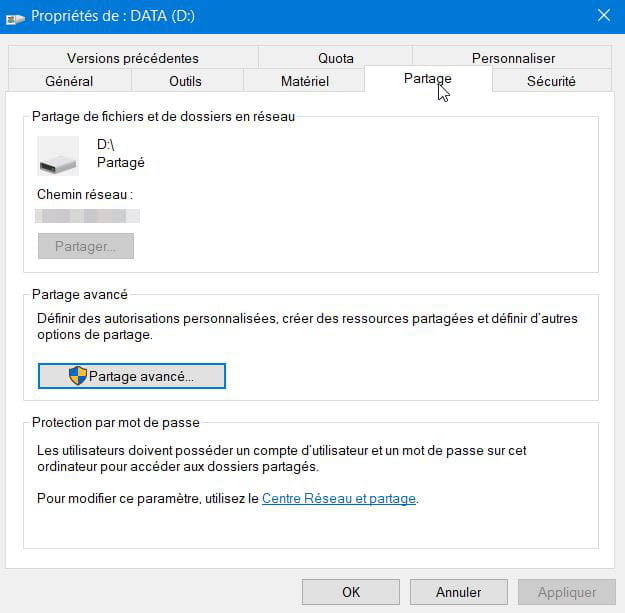
The folders or C and D disks of the computer must be shared.- In Windows Explorer, right-click on the folder or disk to share.
- Then click on Properties, then on Sharing.

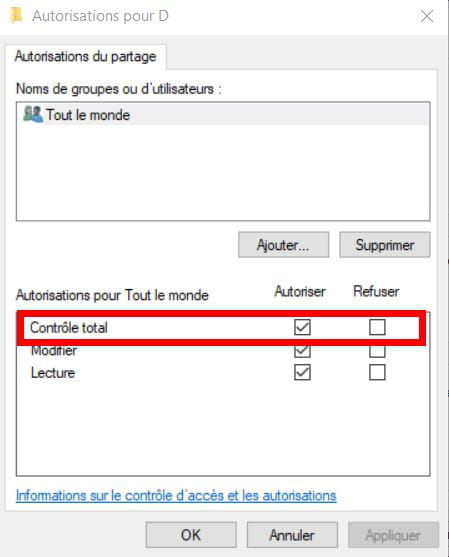
- Then click on Advanced Sharing, then on Permissions.
- If you want to be able to write to the folder or disk, check Full Control. Otherwise, you will only have read permission and copying files to the computer will be impossible.
Transfer files
In this example, we will transfer images from the smartphone to the computer. The method is similar for all other types of files.- On your smartphone, open the folder containing the photos to copy.
- Long press the name of the first image to select it and short presses to select the following ones.
- When the selection is complete, click on Copy.

- Then return to the home screen by clicking on the
 icon. Go then to Remote. Click on the name of the computer.
 - Then select the folder that will host the images and click on Paste at the bottom of the screen.


The transfer begins. In general, the operation is very quick. When everything is done, disable Wi-Fi on the smartphone if you no longer need it. (Wi-Fi can consume quite a bit of energy on some smartphones).
What is well understood is clearly stated,
And the words to say it come easily.
(Boileau)