Macro word checkbox + display text
Solved
Nepenthes6224
Posted messages
24
Status
Member
-
Cmoiaaa -
Cmoiaaa -
Hello,
I would like to create a Word file for work with checkboxes that, when checked, display some text.
I thought the simplest way would be to first format all the text as "hidden" and then remove this hidden format when the checkbox is activated (for example, by putting all the text in a bookmark).
However, I don't know anything about VBA, and even though I've understood the principle by looking around, I'm unable to find the right "code words" for the commands to work.
I am working on Word Professional Plus 2010 (English version).
Thank you for your help.
P.S.: I created a sample file, but I don't know how to attach a file here?!?
I would like to create a Word file for work with checkboxes that, when checked, display some text.
I thought the simplest way would be to first format all the text as "hidden" and then remove this hidden format when the checkbox is activated (for example, by putting all the text in a bookmark).
However, I don't know anything about VBA, and even though I've understood the principle by looking around, I'm unable to find the right "code words" for the commands to work.
I am working on Word Professional Plus 2010 (English version).
Thank you for your help.
P.S.: I created a sample file, but I don't know how to attach a file here?!?
14 answers
-
https://www.cjoint.com/c/FJyoQtXtIxq
Thank you
Here is the link
My data is "confidential", so I created a template that has nothing to do with it :-)
Indeed, there is a lot to hide.
Sometimes it's text (several lines), or even an Excel insert
I would say I have a maximum of 5 to 6 checkboxes
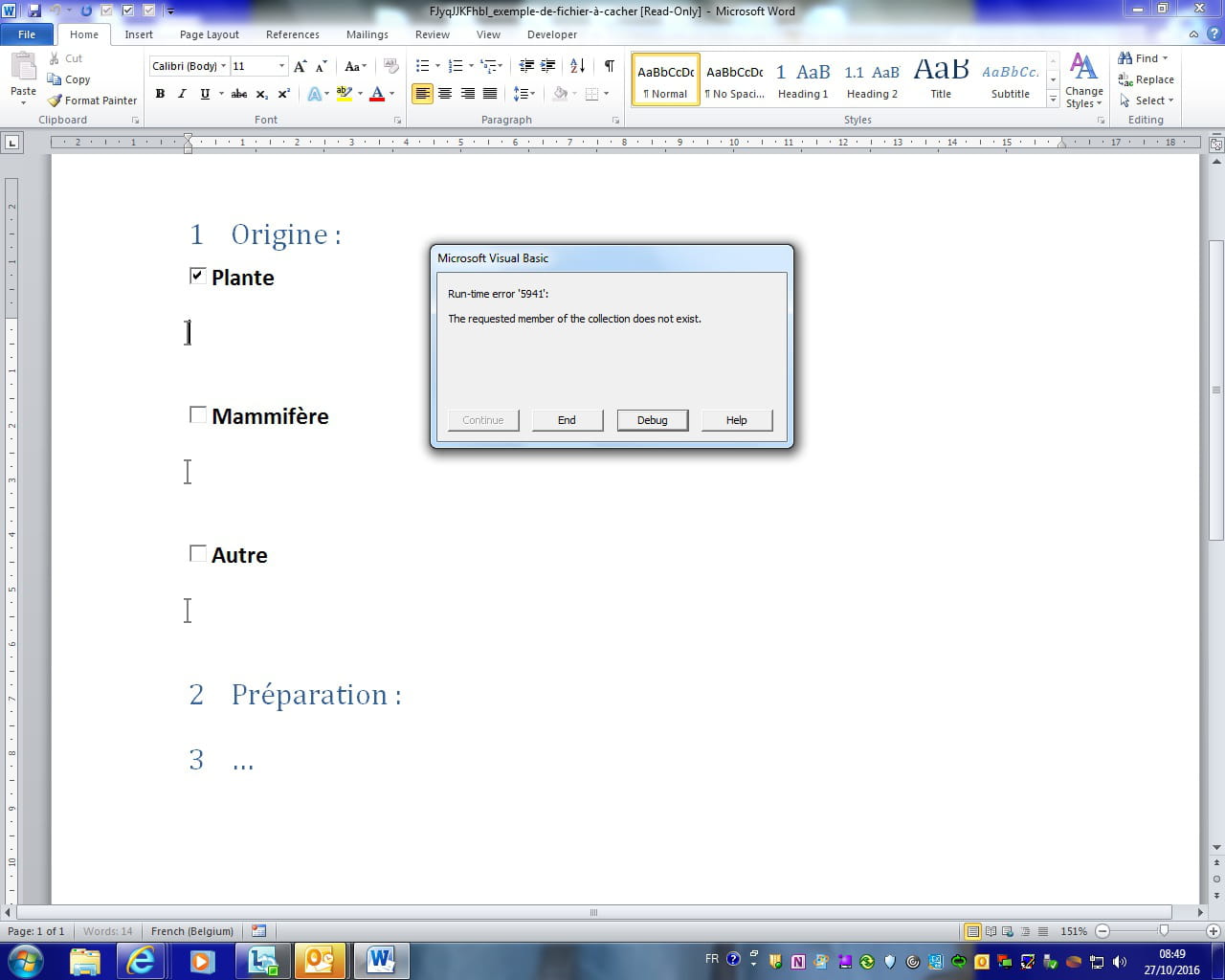
Here's the style of macro I've come up with that seemed the simplest (but there's a programming error somewhere :-(
Private Sub CheckBox4_Click()
If CheckBox4.Value = True Then
Selection.GoTo What:=wdGoToBookmark, Name:="purif"
Selection.Font.Hidden = False
End If
End Sub
I don't know if the programming tells you which checkbox I'm using (I do not know which one I am using but I am willing to use another one if someone explains to me which one to choose and how to differentiate it from the others)
I'm not very skilled, sorry -
Well, there are a few checkboxes, but a lot of text, and moreover, texts formatted differently, and even Excel insertions.
So, I think the wisest solution is to use building blocks.
I explain the principle here with content controls:
https://faqword.com/index.php/word/faq-word/gestion-des-macros/847-les-quickparts-personnalises-ne-fonctionnent-pas-dans-une-macro
The problem does not lie in inserting the texts but in deleting them if the checkbox is unchecked. To solve this issue, the best approach is to create tables for each checkbox, tables that we can empty if the box is unchecked.
Here’s an example created from your file. I’ve created three building blocks named cb41, cb2, and cb3 which will be inserted depending on whether you check CheckBox 1, 2, and 3.
https://www.cjoint.com/c/FJyqJJKFhbl
Your idea of hiding the texts was not a good idea.
m@rina
--
Beware of herbal tea: it's a dangerous poison...-
Hello M@rina
I attempted to follow your tutorial https://www.faqword.com/index.php/word/132-formulaires-controles/939-je-souhaite-qu-un-texte-s-affiche-automatiquement-apres-avoir-coche-un-controle-de-contenu-case-a-cocher
but I'm stuck on "paste the following macro into your template" and also on "Replace the Template path with yours".
Could you provide more detailed explanations?
Sincerely
-
-
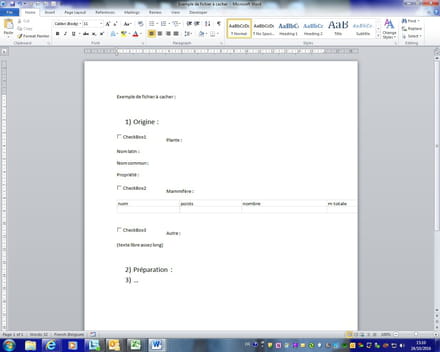
Here you go, since I don’t know how to attach in Word format, I took a screenshot of my file, it might help... -
Hello,
First, you need to know what type of checkboxes you are using. There are three types: form fields, content controls, and ActiveX controls.
Then, if I perceive your document correctly, it seems you want not just one text, but a whole series of information once the checkbox is checked.
Moreover, I see that the information is arranged differently.
So, how many checkboxes should the file contain approximately? And then how much (approximately) text should appear or disappear for each checkbox? The number of information elements will determine the solution.
We can use fields (IF checkbox1 = true then...), we can also use macros.
So, while waiting for this info... can you provide an example of your document by putting it here:
https://www.cjoint.com/ and don't forget to provide the link.
m@rina
ps: I have put your question in Word, as there are very few people who use macros with Word.
--
Beware of herbal tea: it's a dangerous poison... -
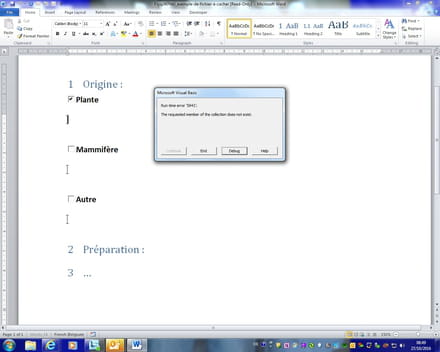 I'm sorry for the delay, but I can only check this at work...
I get an error message when I try to check the checkboxes in your file. Is that normal? Do I need to enable something in Word other than the developer tab?
Thank you -
Indeed, it works better when I edit :-)
I was able to rework from the 3 checkboxes you created, and it works :-)
However, I tried to create one myself, and it failed again :-(
I'm not good at this...
It says that it doesn't recognize the path.
Can you explain to me concretely what you do to make it work?
I have correctly entered my text as an auto-text, and at the place where the auto-text is supposed to display, I insert a bookmark with the same name as the auto-text.
I copy your code that I adapt (checkbox number, name of the auto-text, and this:
ActiveDocument.Tables(5).Rows(1).Range.Text = ""
(I saw that you do an increment of Tables, but I couldn't find in the document a table or anything else, so I didn't quite understand...)
What am I doing wrong? -
I think it's really at the level of this table, because when modifying the first checkbox, the text no longer disappears when I uncheck it, but it duplicates if I check it again...
On the other hand, I managed to better modify the autotext at the second one, which works correctly...
The screenshot doesn't seem to load, but apparently the problem he pointed out was related to the Which:=wdGoToAbsolute.-
So first of all, this document is a template. The building blocks I have included are in the template. The purpose was to provide you with a document that works because by default, the building blocks are found in Building blocks.dot or in normal.dot. The advantage of including them in the specific template is to be able to distribute this template with everything needed.
So the macro contains the code that finds the template and the associated building blocks.
Regarding the tables, the number is the sequential number of the tables in the document. wdGoToAbsolute gives the number absolutely in the document, unlike wdGoToRelative which gives the number relative to where you are located.
For the checkbox, what content should be inserted? If it's a table, you need to insert a paragraph break before and after.
I explain here:
http://download.faqword.com/index.php/word-exemples/formulaires-controles
(fc07.dotm)
m@rina
-
-
I really like this type of model because it’s exactly what I need to do: create a template file that will serve me in my future experiences but that I also have to share with my colleagues so they can use it too... (otherwise, for my personal information, what exactly is the .dot template? “Stupidly” saving the finished document in .dot format?
For the tables, my problem is that I can’t see them. Are they with a white border to make them invisible? (I can't check from home because I only have a tablet) or is it something else that is called a table?
And let’s imagine that afterwards, I have to type some text, then reintroduce a checkbox area. How can I make it differentiate the two tables?
Here, I started with the simplest: text, but later, I will have another Excel table to insert...
What is paragraph return? A particular key?
Sorry, I really don’t know much...
In any case, a big thank you for your help.-
A Word template (since version 2007) has a DOTX extension or DOTM for those with macros.
The DOT extension was the extension for templates until version 2003. It still exists, however, for the file building blocks.dot.
For the tables that you cannot see, the paragraph breaks that you cannot see, etc., it's because you are not displaying non-printable characters. When working with Word, I often repeat, it is essential to display these characters, as this is the only way to know what you're doing. You need to click on the ¶ button in the Home tab.
If you have a problem with this table, it might be that it has been deleted, for example.
m@rina
-
-
Hello,
I don't see any table even when displaying non-printable characters.
I tried to create a new Word document directly, and it doesn't want to save my macros (which, by the way, do not work).
What am I doing wrong?
Here's what I'm doing:
I create a table, insert my check-boxes in this table. After that (in the same cell of the table but on the next line), I put a "blank" bookmark that I name, then I put what I want to hide there, which I add to the auto-entry list (I name it the same as my bookmark). Then, I edit the check-box, rename it, and go into the VBA. I copy your code there, adapting it (name of the auto-text, row number of the table).
Then, I hope it works, but it fails...
Thank you. -
And when I want to open the file I worked on yesterday (based on your file), it only opens as doc1.doc, and no longer as .dot, and I no longer know how to edit it and add other macros or modify the ones that don't work?!?
-
Hello,
I think you’ve taken on a complicated document while not being very familiar with Word. I can’t provide complete training on a forum... So I recommend starting by buying a good book because you’re asking many questions that are fundamental to using Word.
For your document, I suggest downloading the example I uploaded and shared the link to above.
To quickly address your issues:
- Checkboxes cannot be placed in tables (see template)
- A template creates a new document when you double-click it, which is the purpose of a template. To open it, you should right-click => Open, or open it from the application.
m@rina
-
-
Hello,
Sorry for the delay, but I've just come back from a week off
I have a book (VBA for Dummies), but it's not helping me. Either I get lost or I can't find the link between the Word document and the VBA code
I also searched online and found no tutorials on the internet :-(, which is why I came to this forum
I was hoping for a simple tutorial, but it really seems complex :-(
So I'll just stick to modifying the document you made based on my example (I'll limit myself to 3 checkboxes, it's few but it's already something)
In any case, thank you for your help, it's already helping me a lot -
Hello,
Yes, I notice that I'm discovering lots of features in Word as I go along with my templates.
And thanks to the template, I've been able to manage everything :-)
I just have one last question: how can others use my documents?
Do I need to save the code directly in the template and not in an attached template?
If I do that, it bugs too, but I suspect it's because the AutoText isn't following along (I checked when I create a simple AutoText selection). How can I make sure it transfers as well? For now, I save everything in "General" or in the name of my template file for the macros.
Thanks in advance
I promise I'll stop bothering you after this. -
Good evening,
In order for other users to use this template, it's preferable that the building blocks are within the template. That's why I provided a template (dotm) and not just a document (docm). See my explanation in post 9.
Regarding macros, it's somewhat the same. They will work if they are in the template.
In summary, this template needs to be distributed and nothing else, as this template contains the building blocks and macros.
Using a template: first, place it in the templates folder.
Then File => New, select the template, and create a new document from this template.
m@rina
--
Beware of herbal tea: it's a dangerous poison... -
Great!
Thank you for your explanations, it works!
I'm marking this post as resolved :-)