Automatic brightness adjustment
Diably
-
BarryT -
BarryT -
Hello,
For several months now, I've been experiencing changes in brightness (laptop screen) every time I perform a different action, and this has been happening for several months. I've tried several things but nothing has worked, which is why I'm here asking for help...
Problem:
I have a laptop running Windows 10, and every time I take an action (opening Chrome, going into settings, launching a game...), the screen brightness changes on its own (increases or decreases).
It's especially annoying in the evening when my eyes are tired and the brightness suddenly goes to maximum...
I've already tried the method of going to power options > Display > Enable adaptive brightness > Disable on battery and plugged in (still have the problem)
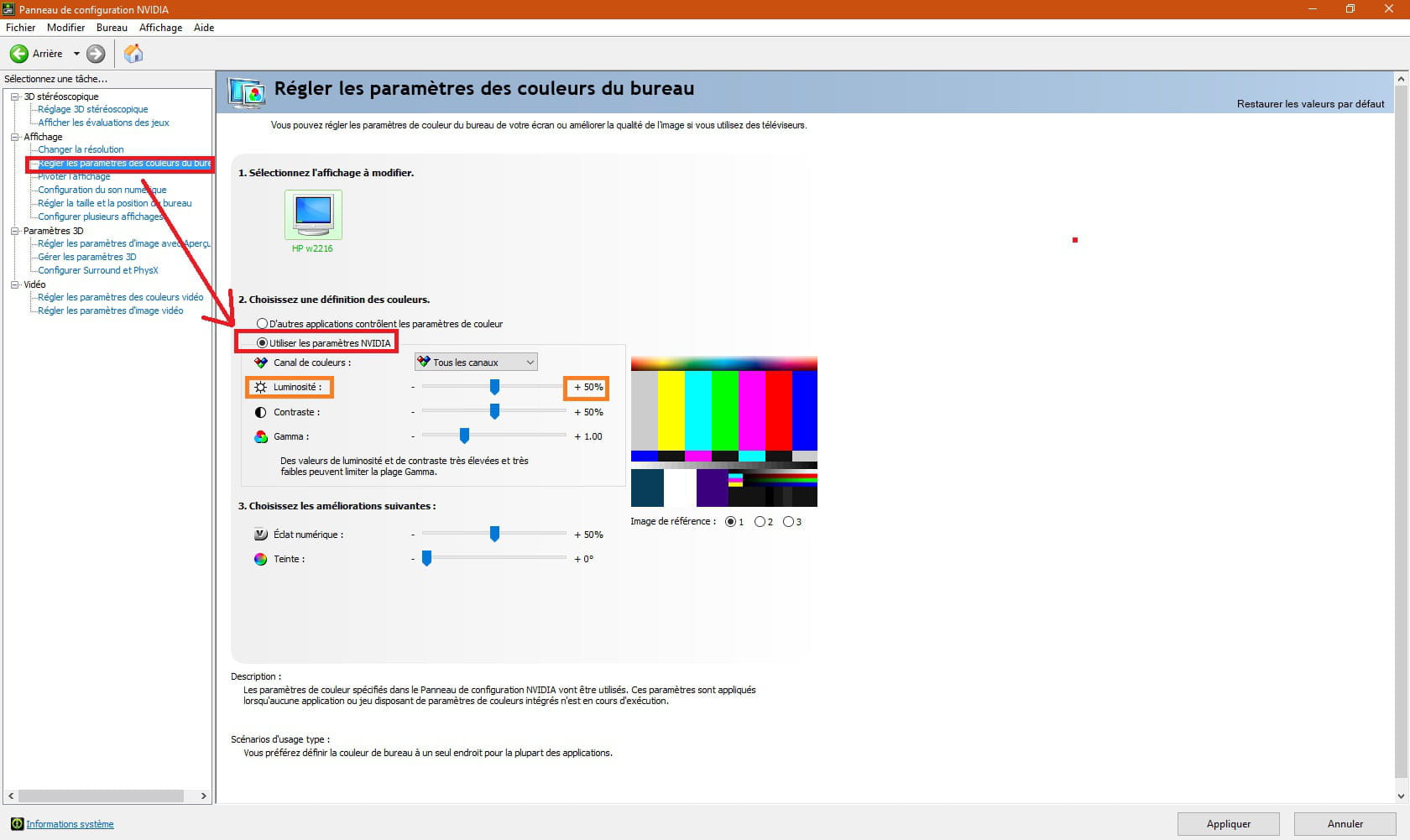
Has anyone else encountered this problem? Could it be coming from another software like Nvidia that might also influence the brightness? Or maybe another application?
Thanks to those who will try to help me, I will try to respond as quickly as possible!
Thank you
For several months now, I've been experiencing changes in brightness (laptop screen) every time I perform a different action, and this has been happening for several months. I've tried several things but nothing has worked, which is why I'm here asking for help...
Problem:
I have a laptop running Windows 10, and every time I take an action (opening Chrome, going into settings, launching a game...), the screen brightness changes on its own (increases or decreases).
It's especially annoying in the evening when my eyes are tired and the brightness suddenly goes to maximum...
I've already tried the method of going to power options > Display > Enable adaptive brightness > Disable on battery and plugged in (still have the problem)
Has anyone else encountered this problem? Could it be coming from another software like Nvidia that might also influence the brightness? Or maybe another application?
Thanks to those who will try to help me, I will try to respond as quickly as possible!
Thank you
8 answers
-
pistouri Posted messages 19011 Registration date Status Contributor Last intervention Ambassadeur 8 725
Hello,
Various procedures to test
Parameter KMD_EnableBrightnessInterface2 in the Registry
There is a standard video driver and brightness control, but after installing the AMD CCC driver, it stops working because the AMD driver takes control of the brightness control.
THE SOLUTION IS: DISABLE the AMD Brightness control
In video
https://www.youtube.com/watch?v=q9MUsPAEohk
The following method involves editing the registry:
Open the Registry Editor (regedit.exe), type cmd in the Cortana search box
Go to this registry key:
HKEY_LOCAL_MACHINE \ SYSTEM \ ControlSet001 \ Control \ Class \ {4d36e968-e325-11ce-bfc1-08002be10318} \ 0000
Find the DWORD KMD_EnableBrightnessInterface2 parameter and change its value from 1 to 0
As there may be several KMD_EnableBrightnessInterface2 parameters in the Registry, open the search window (F3) and find all other parameters with the name KMD_EnableBrightnessInterface. Change the values of all found keys from 1 to 0
Restart the PC.
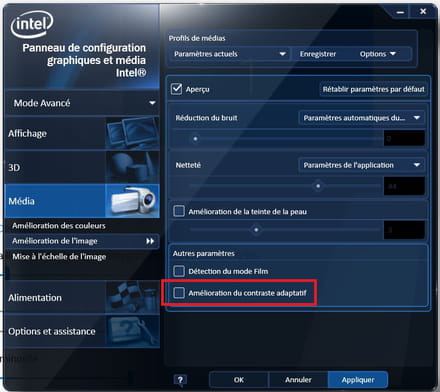
Intel HD Graphics
In the options go to:
Media→In Media profiles→Other settings→Uncheck→Adaptive Contrast Enhancement
NVIDIA
Check if in desktop settings, the option "other applications control color settings" is checked. You need to use the NVIDIA settings and adjust.
Vari-Bright
The procedure to disable Vari-Bright from AMD settings is as follows:
Open the AMD Radeon control panel.
Go to the Power tab and select the PowerPlay option.
Uncheck the box for the Enable Vari-Bright option. This will disable the option.
Generic Pnp Monitor
First, make sure that the Generic PnP Monitor is available in the Monitors section of the Device Manager. If not, right-click and enable it.
Restart your computer and try to adjust the screen brightness.
Microsoft Basic Display Adapter
To do this, select your graphics card in Device Manager, right-click and select Update Driver Software from the context menu
Select Browse my computer for driver software -> Let me pick from a list of device drivers on my computer
In the list of drivers, select Microsoft Basic Display Adapter and click Next
The system will replace the current driver
Restart your PC and ensure that the screen brightness can be adjusted with the Fn keys
Reset power plans to default settings
To check
System settings. Power and sleep. Related settings. Additional power settings.- Normal use (recommended), then modify the plan settings.
There are 2 sliders, one for battery, the other for AC power.
The one for battery was towards the minimum, but the one for AC power was at maximum!
Correct and save changes.
With an Asus PC
Reinstall the ATK drivers
ATKACPI (ATKACPI driver and hotkey-related utilities) is a driver that enables the pre-programmed functions of your keyboard:
- Fn + F5: Decrease the brightness of your screen
- Fn + F6: Increase the brightness of your screen
This driver (which manages communication between the OS and BIOS for ACPI [Power Management]) is essential for enabling pre-programmed keys
Uninstall Asus Splendid Utility, if present (no need to change options)
Uninstall all Nvidia 381.89 drivers and reinstall the drivers
Do not rule out the possibility of a Malware/Virus infection.
Among the utilities, if Core Temp (displays real-time temperature) is installed, it should be uninstalled
A+
--
pistouri